How to Change the Interface and Theme Settings?
You can choose which interface opens on startup, and change the appearance theme, in the Settings page.
Step 1: Open Settings
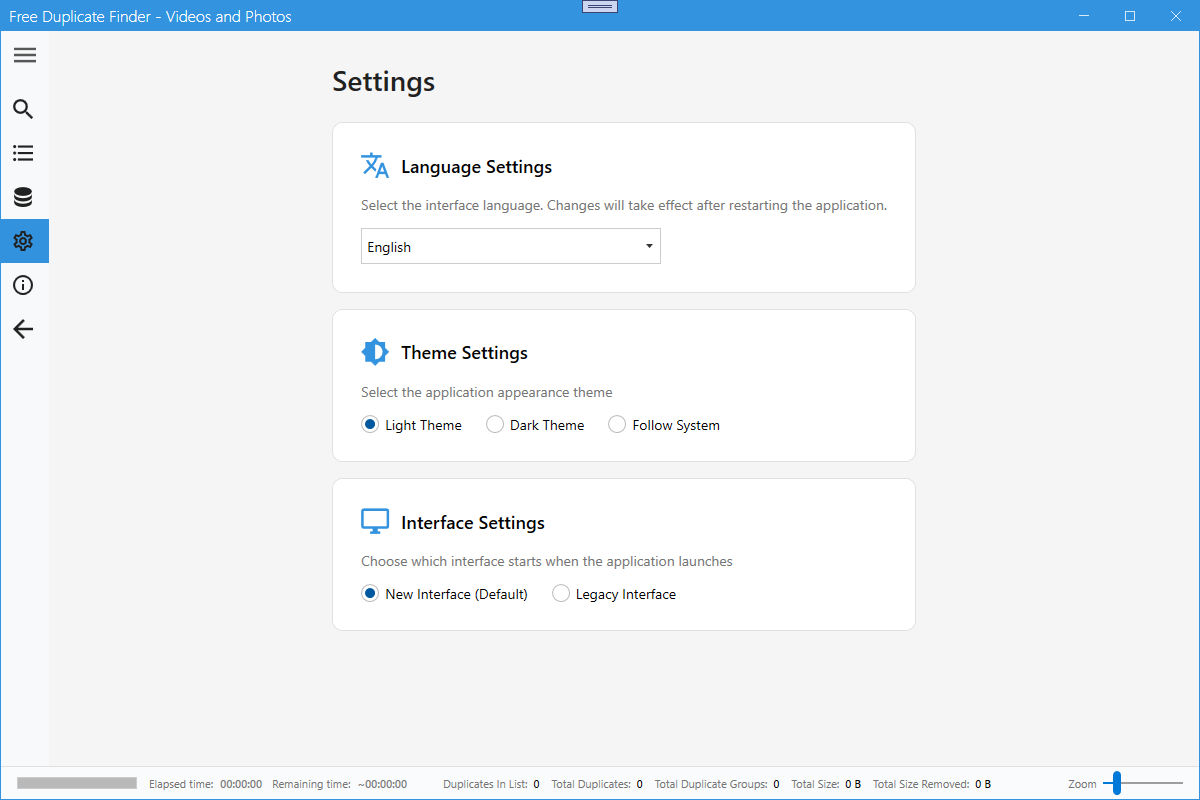
In the modern interface, select Settings in the left sidebar navigation.
Step 2: Choose the startup interface
In the Interface Settings section, choose either New Interface (Default) or Classic Interface. The change takes effect after the application restarts.
Step 3: Change the theme
In the Theme Settings section, choose Light Theme, Dark Theme or Follow System. The theme is applied immediately.
Step 4: Change the language (optional)
In the Language Settings section you can pick the interface language or follow the system language. The change takes effect after the application restarts.
Tip
- The navigation sidebar can be collapsed by clicking the hamburger button at the top-left, giving more room for results.
- In the classic interface, use the menu entry Switch to New Interface to return to the modern interface.