How to Switch to the Classic Interface?
Free Duplicate Finder includes both a modern interface and the classic interface. You can switch between them at any time.
Step 1: Open the navigation menu
In the modern interface, click the Switch to Classic Interface entry at the bottom of the left sidebar navigation.
Step 2: Restart the application
The interface change takes effect after the application restarts. The app restarts automatically and opens in the classic interface.
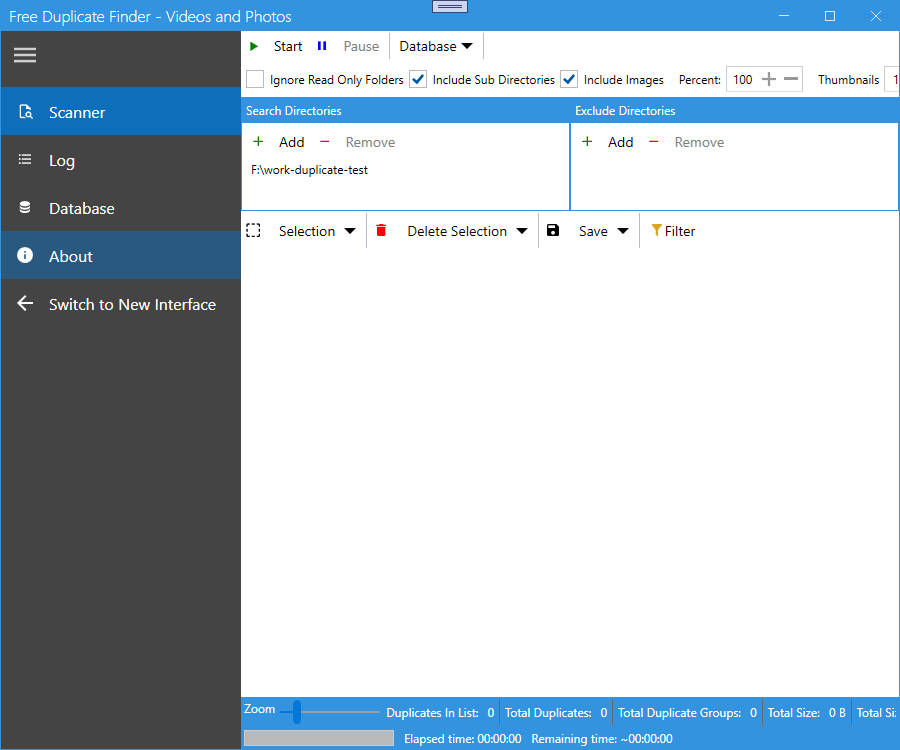
Step 3: Switch back to the modern interface
Inside the classic interface, open the menu and choose Switch to New Interface. The app restarts and opens in the modern interface.
Tip
- You can also set which interface opens on startup in Settings > Interface Settings. See the next page.