
1. My Videos Folder:媒体库1. My Videos Folder: the library
第二个标签把 Windows「视频」文件夹(%USERPROFILE%\Videos)里的视频和子文件夹排成缩略图墙。缩略图就是文件的画面,看起来比文件名快得多。
The second tab turns your Windows Videos folder (%USERPROFILE%\Videos) into a thumbnail wall of videos and subfolders. Each tile previews the actual frame, which beats reading file names.
- 单击视频缩略图:开始播放;
- 文件夹也会显示成一张卡片,方便你认出哪一堆是剧集;
- 内容太多时右侧有滚动条,往下翻即可。
- Click a video tile to play it.
- Folders show up as their own cards, so a series is easy to spot.
- Long folders scroll — use the scrollbar on the right.
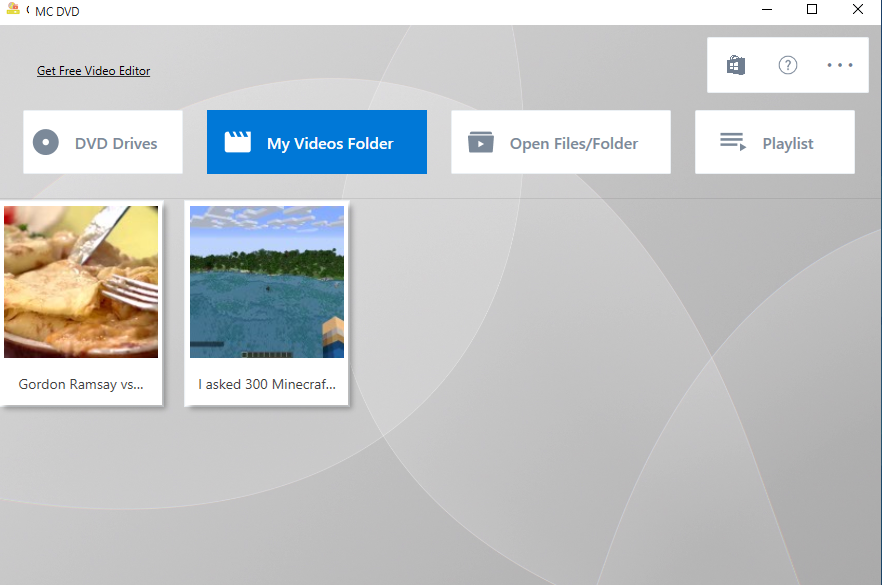
▲ 媒体库:视频与子文件夹混合成缩略图墙▲ The library: videos and subfolders in one thumbnail wall
想让它显示别的文件夹:Want it to show another folder?
媒体库固定读 Windows 的「视频」文件夹。把这个文件夹里想看的路径做成快捷方式放进去,或者直接把视频挪进来,比翻路径快。
The library always reads the Windows Videos folder. Drop shortcuts or the files themselves into it — quicker than browsing paths every time.
2. Playlist:播放队列2. Playlist: the queue
第四个标签是播放队列。每打开一个文件就会往这里追加一条,所以它其实是一份「最近播过」的历史,下次接着看很方便。
The fourth tab is the play queue. Every file you open is appended here, so it doubles as a "recently played" list you can pick up from later.
- 点任意一条:从这条开始播;
- 右键某一条 → Remove this:只删这一条;
- 右键空白处 → Clear All:清空整个列表(不会删文件)。
- Click an entry to play from there.
- Right-click an entry → Remove this to drop just that one.
- Right-click the empty area → Clear All to empty the list (files are not deleted).
3. 媒体库和播放列表的区别3. Library vs playlist
| 媒体库(My Videos Folder)Library (My Videos Folder) | 播放列表(Playlist)Playlist | |
|---|---|---|
| 内容来源Content from | 「视频」文件夹,自动扫描the Videos folder, scanned automatically | 你实际打开过的文件files you actually opened |
| 会自己变吗Changes by itself | 会,文件夹里加减文件它就变Yes — add or remove files and it follows | 只会因为你播放 / 移除而变化Only when you play or remove something |
| 典型用法Typical use | 从一堆片里挑一部pick something from everything you own | 接着上次没看完的继续resume what you were watching |