
1. 提取音频(Extract Audio)1. Extract Audio
把视频里的声音单独拿出来存成音频文件,用于做铃声、听讲座、或者只留配乐。
Pull the sound out of a video into an audio file — for ringtones, lecture audio, or keeping just the soundtrack.
- 悬浮球里点 Extract Audio;
- Add Files 加入视频(可以多个一起提);
- Format 里选输出音频格式:MP3 / WAV / AAC / FLAC;
- 确认 Output Path,点 Start Convert。
- Press Extract Audio in the floating ball.
- Add Files to add videos (several at once is fine).
- Choose the audio Format: MP3 / WAV / AAC / FLAC.
- Check Output Path and press Start Convert.
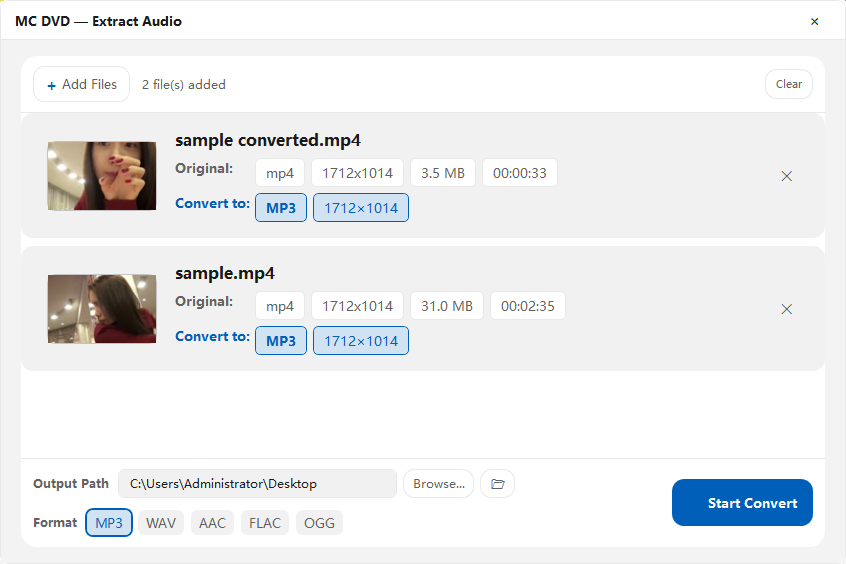
▲ 提取音频:加入视频后,格式栏只剩音频格式▲ Extract Audio: after adding videos the format row offers audio formats only
选格式时按用途挑:
Pick by purpose:
| 格式Format | 适合Best for |
|---|---|
MP3 |
通用,任何设备都能放universal, plays anywhere |
WAV |
无损、体积大,适合再编辑uncompressed and large — for editing |
AAC |
同体积下音质更好,苹果设备友好better quality per byte, Apple-friendly |
FLAC |
无损压缩,存音乐库lossless compression, for a music library |
2. 转 GIF(To GIF)2. To GIF
把视频片段做成动图,适合发聊天、做教程示意图。GIF 没有声音,文件会比视频大,所以片段别太长,几秒到十几秒最合适。
Turn a clip into an animated GIF for chats or documentation. GIF has no audio and gets big quickly, so keep clips short — a few seconds to about fifteen works best.
- 悬浮球里点 To GIF;
- Add Files 加入视频;
- 确认 Output Path;
- 点 Start Convert,完成后用 Open Output Folder 查看。
- Press To GIF in the floating ball.
- Add Files to add the video.
- Check Output Path.
- Press Start Convert, then Open Output Folder.
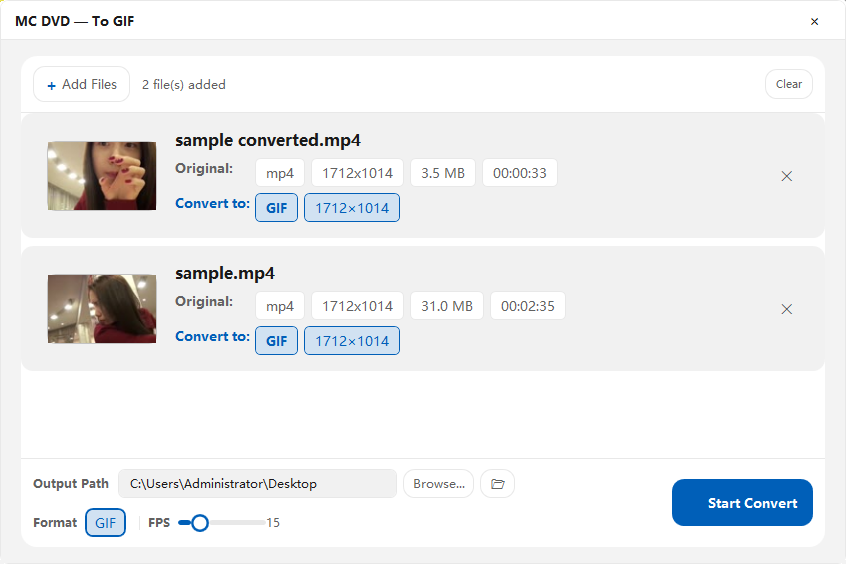
▲ 转 GIF:同一套窗口,输出为动图▲ To GIF: same window, output is an animation
GIF 体积偏大是正常的:Large GIFs are normal:
GIF 格式本身不做帧间压缩,同一个片段转成 GIF 常常比 mp4 大好几倍。想要小体积,就缩短片段或降低分辨率。
GIF does no inter-frame compression, so the same clip can be several times bigger than the mp4. Shorten the clip or lower the resolution to shrink it.
3. 五个工具的共同点3. What the five tools have in common
- 都是独立窗口,标题以 MC DVD — 开头,关掉不影响主界面的播放;
- 都先 Add Files 再加文件,都支持把文件拖进窗口;
- 都有 Output Path,转换前可以随时改到别的目录;
- 完成后都弹 Conversion Complete,并给一个 Open Output Folder。
- Each is its own window titled MC DVD — something; closing it leaves playback in the main window alone.
- All start with Add Files, and all accept files dragged into the window.
- All have an Output Path you can change before starting.
- All finish with Conversion Complete and an Open Output Folder button.