
 Taskbar +Plus
A lightweight, open-source taskbar customiser for Windows 10 and 11. Transparency, blur and acrylic for every taskbar state.
Get it from Microsoft Store 中文教程A scene is a taskbar state, not a separate profile. Taskbar +Plus watches what Windows is doing and switches to the matching scene automatically, so you can give the same taskbar three different looks depending on what is on screen.
Every scene page has the same layout. At the top sits the Enable this config switch: when it is off, that scene is ignored and the taskbar keeps the previous look.
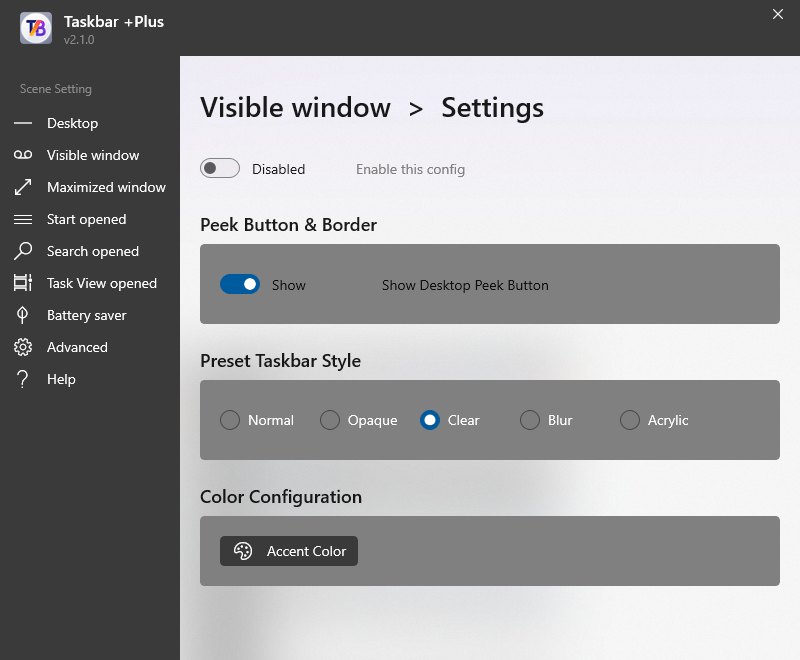
The Visible window scene: Enable this config is off, so this scene does not apply yet.
This scene applies when a normal, non-maximised window is in front — a browser, Explorer, a chat window. Because content sits behind the taskbar, a mostly transparent taskbar can become hard to read here, which is why many people keep it subtle:
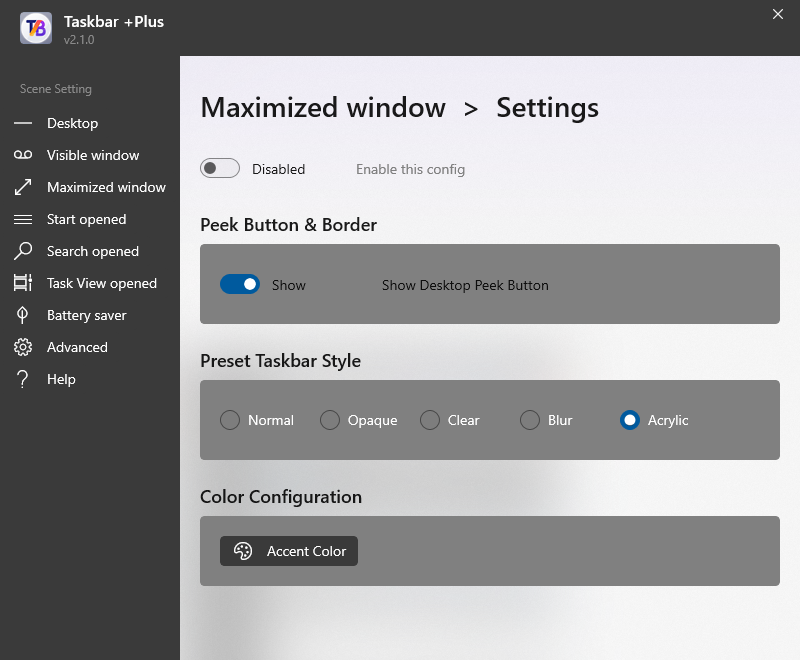
The Maximized window scene using the Acrylic preset.
When a window is maximised the taskbar sits directly against the app, so this is the scene where an opaque style usually wins: Acrylic or Blur keeps the taskbar legible while still showing a hint of the background.
The Desktop scene is the default: it applies whenever no window is in front. This is the one place where full Clear pays off, because the wallpaper is all that sits behind the taskbar.
The switch in this group controls the Show Desktop area — the sliver at the far right of the taskbar, plus the thin border Windows draws around it. Turn it off if you want a completely clean edge.
| Scene | Suggested preset | Why |
|---|---|---|
| Desktop | Clear | Wallpaper shows through, nothing to read against. |
| Visible window | Blur or Clear | Keeps a hint of separation from app content. |
| Maximized window | Acrylic | Readable against a full screen app. |
Try it, then adjust one scene at a time — changes appear the moment you click.