
 Taskbar +Plus
A lightweight, open-source taskbar customiser for Windows 10 and 11. Transparency, blur and acrylic for every taskbar state.
Get it from Microsoft Store 中文教程When the Start menu, the search panel or Task View slides over the desktop, Windows dims the background — and a transparent taskbar dimmed together with it can look muddy. These three scenes let you swap in a cleaner style for exactly that moment.
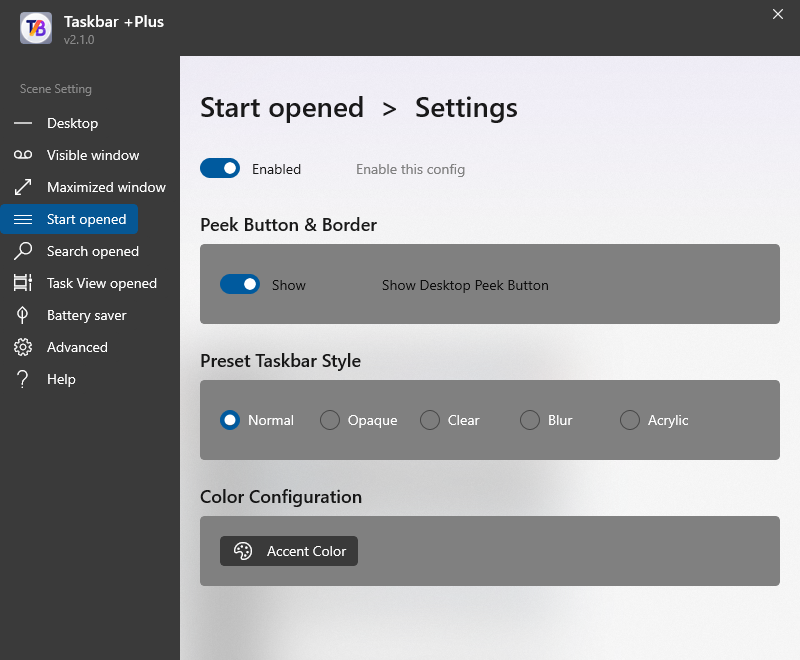
Start opened is enabled and set to Normal, so the taskbar returns to a solid look while the Start menu is open.
A good pattern is Normal or Opaque here: it separates the taskbar from the blurred Start background and looks intentional rather than accidental.
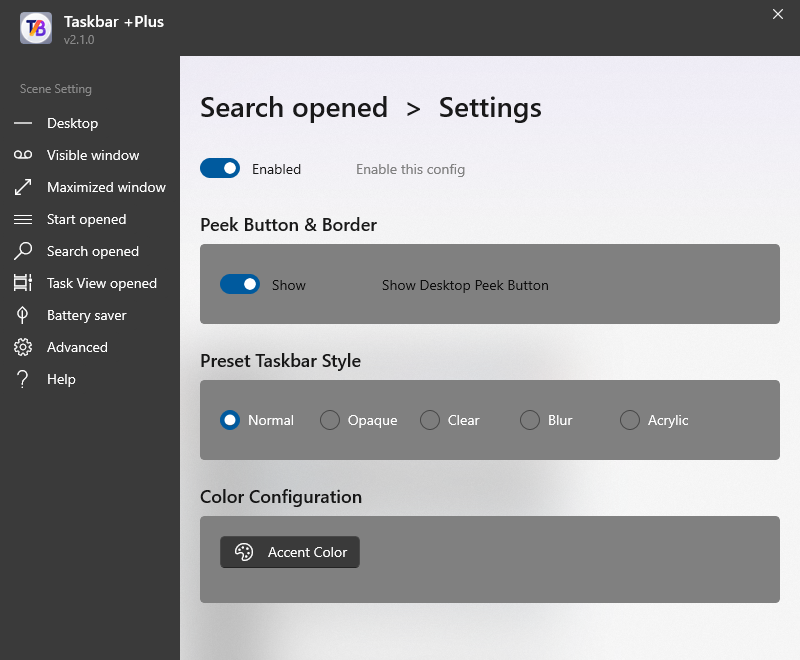
Search opened — the same three setting groups, applied only while the search panel is visible.
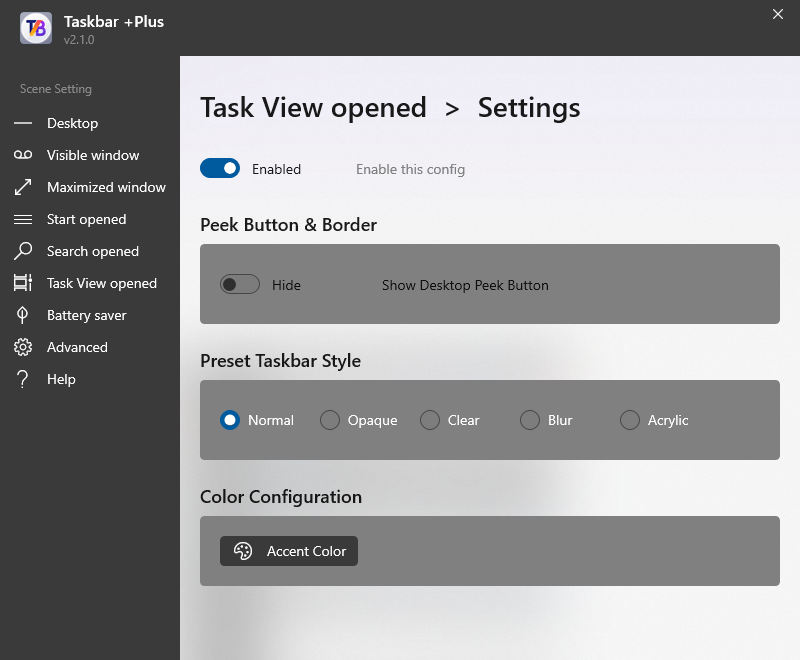
Task View opened — useful when you keep many windows and the Task View grid covers the screen.
If you like one consistent taskbar, leave all three switched off — the app will simply keep the scene that was active before. Enable them only when you want the taskbar to adapt to the overlay: