
 Pure Zip Core
A native Windows archiver with Explorer-style browsing: ZIP, 7z, TAR, GZip, BZip2, XZ and WIM, plus testing, conversion and a scriptable CLI.
Get it from Microsoft Store 中文教程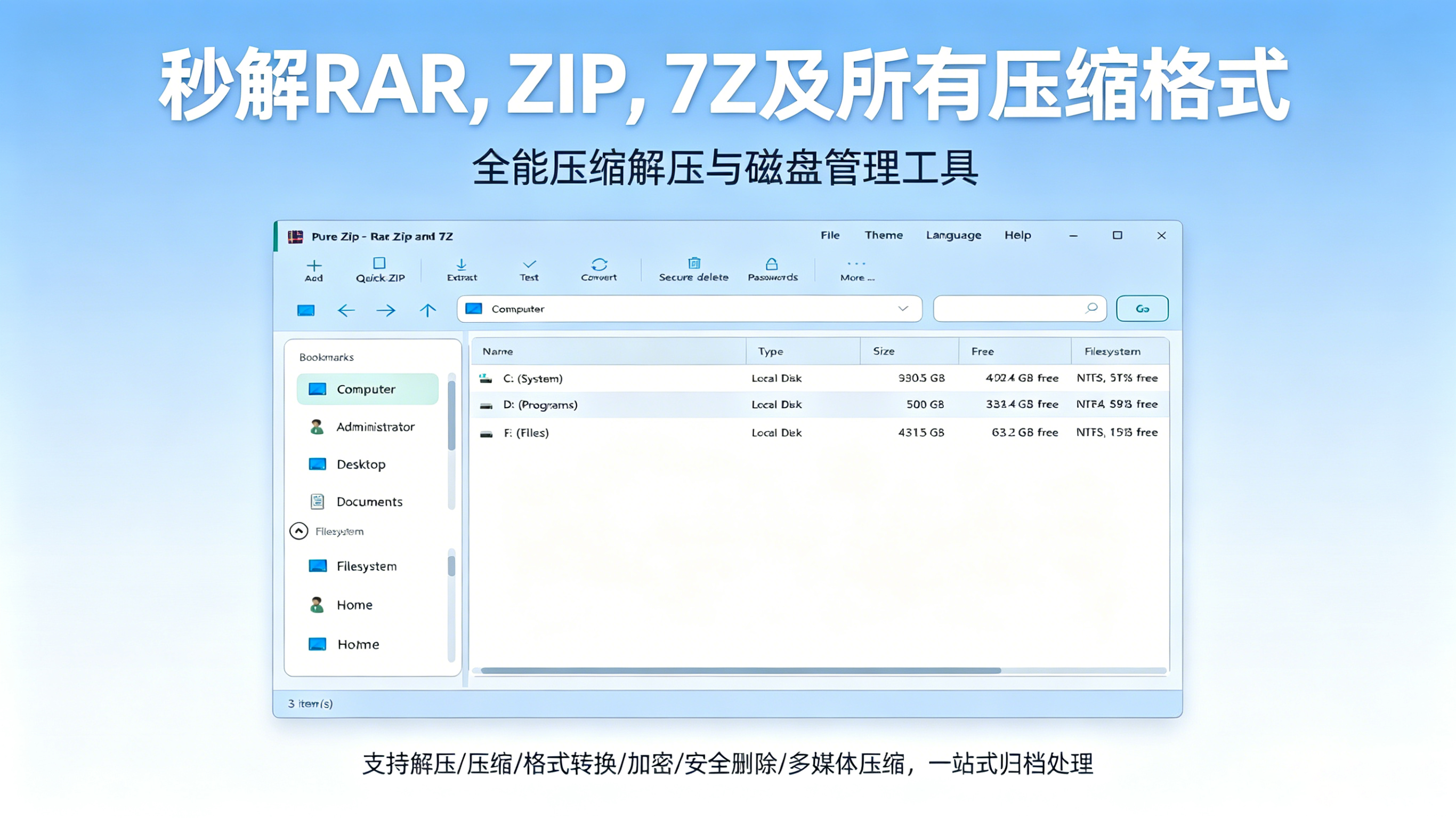
The same window after switching the interface language — layout unchanged, labels localised.
Open the Language menu in the menu bar and pick a locale. The active entry is ticked, which is the quickest way to confirm what is currently loaded. Most labels change immediately; if an already-open dialog still shows the old text, close and reopen it.
Core interface strings are localised through resource tables. A few dialogs that belong to Windows itself (file pickers, for example) still follow the Windows display language rather than the app setting.
The Theme menu toggles between dark and light appearance. The setting is applied across title areas, menus, the file list and dialogs, so there is no half-themed window to look at.
Which one to use is about the room, not the taste: dark reduces glare in low light, light gives more contrast in a bright office. If text still feels small either way, raise the Windows display scaling (125% or 150%) — the layout adapts.
Pure Zip Core ships with a command-line surface accessible through nz.exe. Inside the app, Help → Command-line reference lists exactly the commands the current build supports — treat that page as the source of truth rather than any third-party tutorial.
| For scripts | Recommendation |
|---|---|
| Output | Request structured JSON and parse that. Human-readable text is localised and changes between builds. |
| Success / failure | Rely on numeric exit codes, not on message wording. |
| Passwords | Use an environment variable such as NEATZIP_PASSWORD; never inline a password in the command. |
| Concurrent writes | Two jobs writing one archive can fail with a busy status. Serialise the writes or add a retry in your script. |