
 Pure Zip Core
A native Windows archiver with Explorer-style browsing: ZIP, 7z, TAR, GZip, BZip2, XZ and WIM, plus testing, conversion and a scriptable CLI.
Get it from Microsoft Store 中文教程Encrypted archives you open regularly are a typing tax. The password manager keeps those passwords for you and supplies them when you open the matching archive.
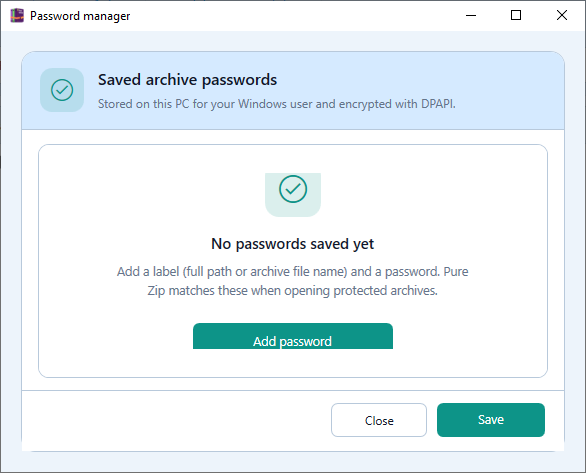
First run: nothing saved yet, one button to start.
Passwords are stored on this PC for your Windows user and encrypted with DPAPI — the same protection Windows uses for its own stored credentials. They are not uploaded anywhere and are not readable by another user account on the same machine.
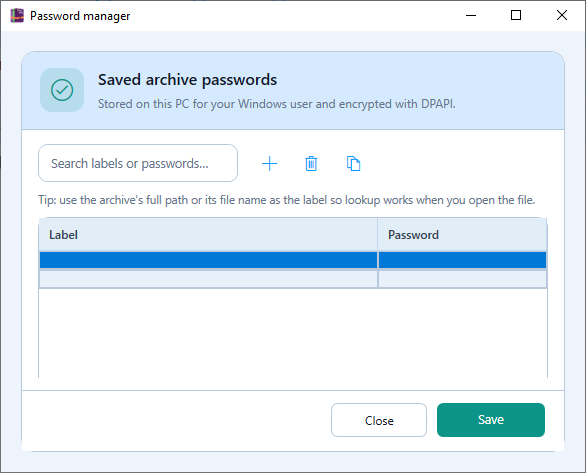
Each row is a label plus a password; the search box filters them.
The icons beside the search box add, delete and copy entries. Deleting an entry only removes it from this manager — the archive keeps its own password.
NEATZIP_PASSWORD instead of typing it on the command line. Command lines end up in history files, logs and process lists.Secure delete is for files where the normal recycle bin is not enough: it removes the data so it cannot be recovered by ordinary undelete tools.
Under More… you will find file hashing (generate checksums to verify a file before and after transfer) and file splitting (cut a single large file into parts independently of any archive format).