
 Pure Zip Core
A native Windows archiver with Explorer-style browsing: ZIP, 7z, TAR, GZip, BZip2, XZ and WIM, plus testing, conversion and a scriptable CLI.
Get it from Microsoft Store 中文教程Quick ZIP is a shortcut: .zip, balanced level, output next to the source, no questions asked. Add opens the full dialog below and is what you want as soon as you care about the format, the size, or where the file lands.
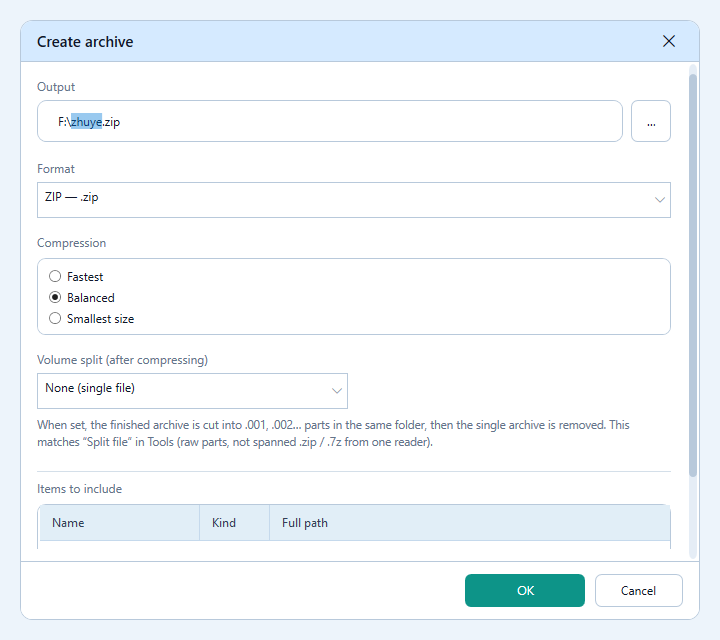
The dialog is one screen: output, format, compression, volume split and the item list.
| Field | What to do with it |
|---|---|
| Output | Type the target path or use … to browse. The extension follows the format you pick, so set the format first. |
| Format | The archive type — see the list below. |
| Compression | Fastest for speed, Balanced (default) for everyday use, Smallest size when you are archiving to keep, not to send. |
| Volume split | Leave on None for a single file, or pick a part size to have the finished archive cut into .001, .002… parts in the same folder. |
| Items to include | The selection you had in the main window. Check the full path column before you commit. |
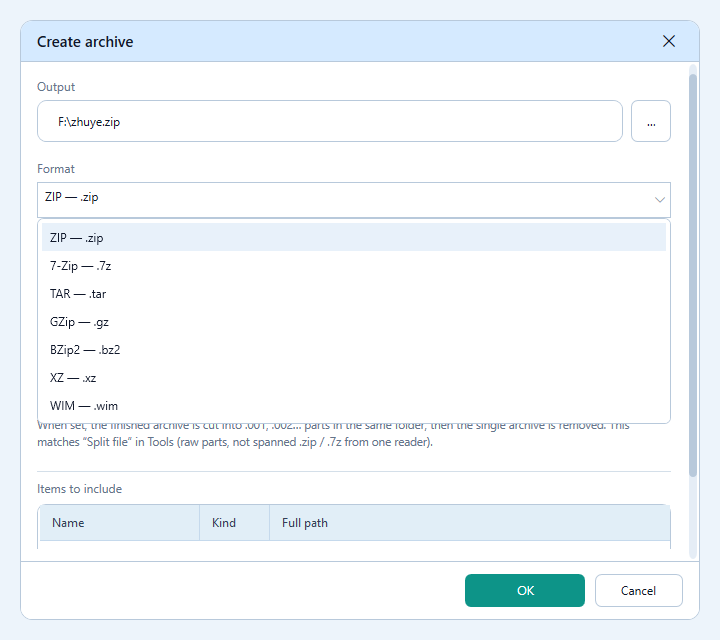
Seven writable formats: ZIP, 7-Zip, TAR, GZip, BZip2, XZ and WIM.
When a part size is set, Pure Zip Core finishes the archive first and then cuts it into sequential .001, .002… parts in the same folder, deleting the single archive. This is the same operation as Split file under More tools — raw parts, not a spanned .zip or .7z that a reader can open in one go.
Select the files you want to add, then use the update-existing-archive workflow and pick the archive to append to. The existing content is kept; only the new items are written in.