
 Pure Zip Core
A native Windows archiver with Explorer-style browsing: ZIP, 7z, TAR, GZip, BZip2, XZ and WIM, plus testing, conversion and a scriptable CLI.
Get it from Microsoft Store 中文教程Pure Zip Core is a native Windows archiver with an Explorer-style file browser. It reads and writes the formats people actually exchange — ZIP, 7z, TAR, GZip, BZip2, XZ and WIM — and adds the things Windows Explorer leaves out: one-click zipping, archive testing, format conversion, password management and a scriptable command line.
It is a normal desktop application, not a cloud service: archives are created and opened on your own machine.
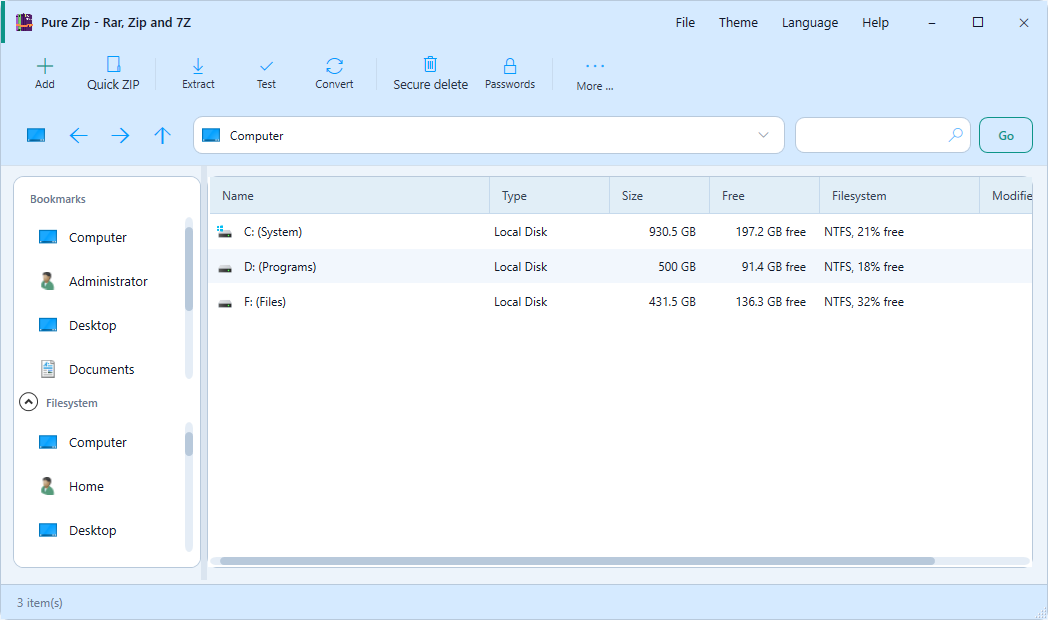
The main window: menu bar, action toolbar, address bar, bookmarks on the left and the file list on the right.
Browsing works the way Explorer does. Use the address combo to jump to a drive or paste a full path, the back/forward/up buttons to move around, and Bookmarks on the left for the folders you use most. The status bar shows how many items are selected.
| Button | What it does |
|---|---|
| Add | Opens the Create archive dialog with full control over format, compression level and output path. |
| Quick ZIP | Zips the selection immediately with sensible defaults — the fastest path to a result. |
| Extract | Unpacks an archive to a folder you choose. |
| Test | Checks an archive's structure and readability without extracting it. |
| Convert | Resaves an existing archive into another format, for example ZIP to 7z. |
| Secure delete | Removes files so they cannot be recovered from the recycle bin. |
| Passwords | Opens the password manager for archives you open regularly. |
| More… | Extra tools, including file hashing and splitting. |
Select a folder or a few files in the list and press Quick ZIP. You get a .zip next to the source with no dialog to fill in. If you need 7z, a different compression level or split volumes, use Add instead — that is what page 2 covers.