
 Pure Zip Core
A native Windows archiver with Explorer-style browsing: ZIP, 7z, TAR, GZip, BZip2, XZ and WIM, plus testing, conversion and a scriptable CLI.
Get it from Microsoft Store 中文教程Select an archive and press Extract, then choose where it should go. The destination is always your choice — Pure Zip Core does not silently unpack next to the source. The same action is available from the Explorer context menu when the shell extension is installed.
Press Test on an archive to check its structure and readability without writing anything to disk. It takes a second and catches truncated downloads and broken parts before the recipient does — worth doing for anything you upload or hand over on a USB stick.
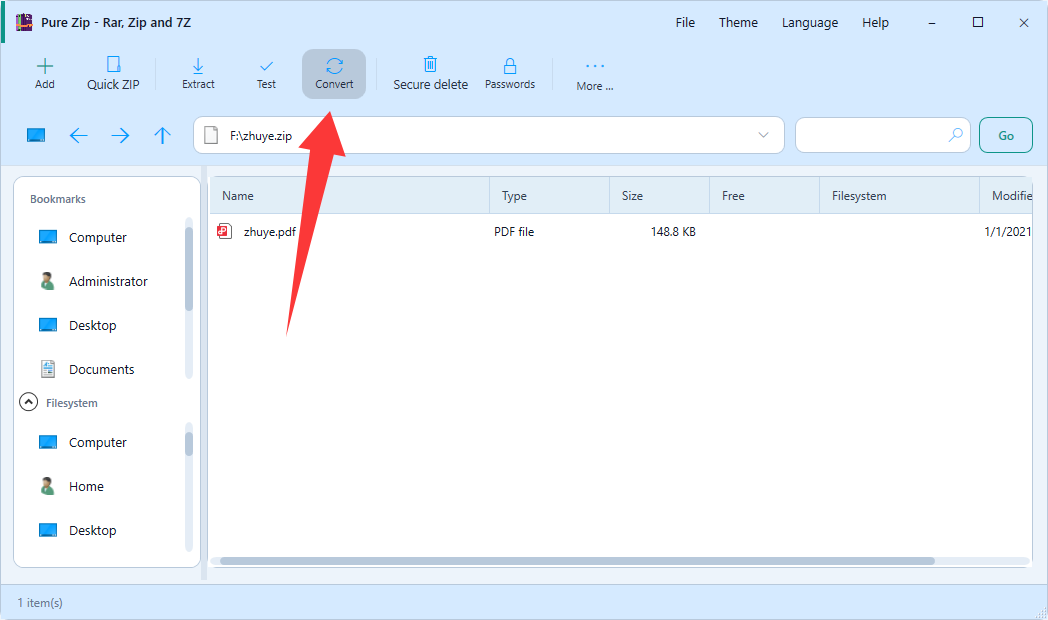
Select the archive in the list, then press Convert — the arrow marks the button.
Conversion is a resave: the content is read and written into the new container, so ZIP can become 7z (and back) without unpacking to a folder first. The output name and type come from a standard Save As dialog.
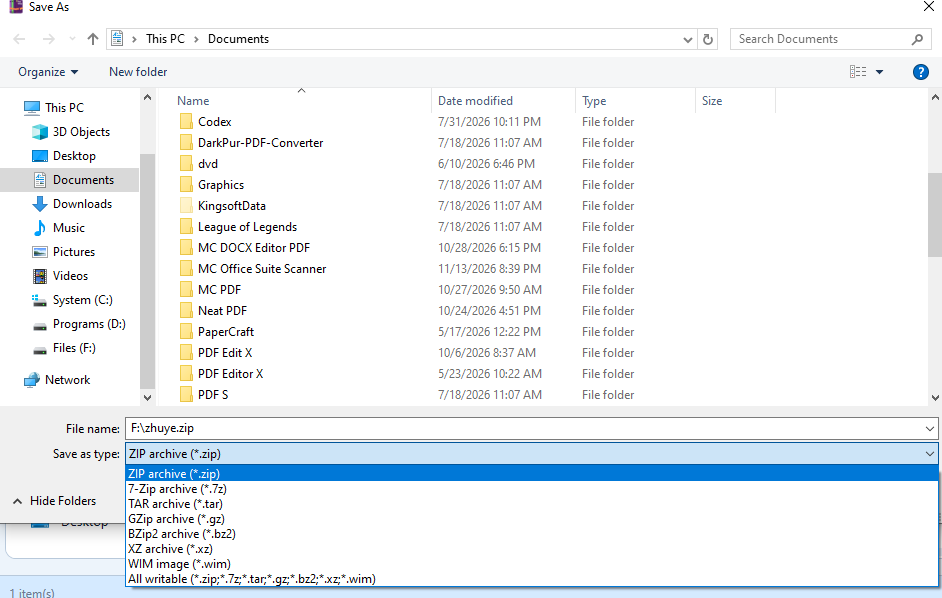
Save As: type the target name and pick the archive type from the dropdown.
The type list is the same seven formats as the Create archive dialog, plus an All writable entry. Pick the extension you want and confirm — the source archive is left untouched, so you can compare sizes and keep whichever is better.