
2.1.21 更新了什么What's new in 2.1.21
这一版围绕「找得到、打得开、说得清」:主界面多了最近打开的文档,打开时能看见进度,打不开的情况更少了,遇到问题时还有一个会把话整理成工单的助手。
This release is about finding your documents, opening them reliably, and telling us clearly when something goes wrong — a recent-documents list, visible progress while a document opens, fewer failed opens, and an assistant that turns your description into a ticket.
- 最近打开的文档:主界面新增 Recent,与 PDF Tools 并列;双击直接打开,每行 ✕ 移除单条,Clear all 清空列表;
- 打开时有反馈:双击后该行显示转圈,文档真正起来之后再停几秒才收起;
- 打开文档更稳:只要 office 模块还活着就继续等,只有真卡死(长时间没有界面、也没有任何进展)才清理并重试一次;同一份文档连点也不会再起一堆 office;
- Feedback Assistant(反馈助手):设置页与 Send feedback 并列;用自己的话说问题,助手帮你整理成工单,Submit 直接建单并给出工单编号;每条 AI 回复都带 Report;
- 日志与崩溃取证:日志按模块、按天分文件;反馈自动附上今天和昨天的日志,以及 Windows 事件日志里的崩溃记录。只上传诊断信息,不含文档内容。
- Recent documents — a new Recent tab next to PDF Tools; double-click a row to open it, ✕ removes one entry, Clear all empties the list;
- Visible progress — the row you double-clicked shows a spinner, which stays a few seconds after the document actually appears;
- More reliable opening — the app keeps waiting while the office module is alive and only cleans up and retries once when it is genuinely stalled; repeated clicks no longer pile up office processes;
- Feedback Assistant — sits next to Send feedback in Settings; describe the problem in your own words, the assistant turns it into a ticket, and Submit files it with an ID; every AI reply has a Report link;
- Logs and crash evidence — logs are now split per module and per day, and a report carries today's and yesterday's logs plus crash records from the Windows event log. Only diagnostics are uploaded, never document content.
1. 最近打开的文档1. Recent documents
主界面右上角有两个并列的标签:PDF Tools 和 Recent。点 Recent 就能看到最近打开过的文档,最多 12 条,最新的在最上面。
The top-right corner of the home screen now has two tabs: PDF Tools and Recent. Click Recent to see the documents you opened lately — up to 12 entries, newest first.
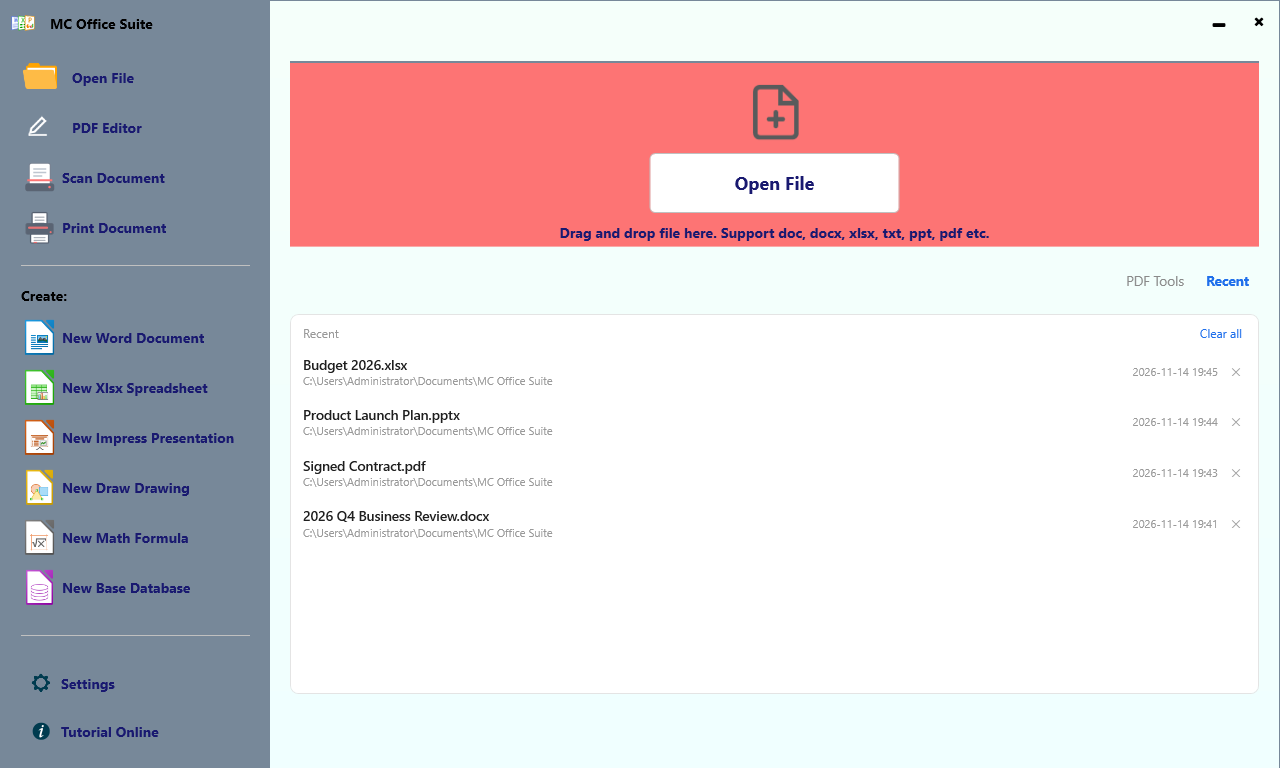
- 双击一条:直接打开这份文档(PDF 交给套件里的 PDF 编辑器,其余交给 office 模块);
- 每行右侧的 ✕:只把这一条从列表里移除;
- Clear all:清空整个列表。
- Double-click a row to open that document (PDFs go to the suite's PDF editor, everything else to the office module);
- The ✕ on the right removes just that entry;
- Clear all empties the whole list.
列表里不只有从主界面打开的文档:从资源管理器双击、从右键菜单打开、在 office 里 File ▸ Open 打开的、以及用 PDF 编辑器打开的,都会出现在这里。
The list is not limited to files opened from the home screen: documents opened from Explorer, from the right-click menu, from File ▸ Open inside the office module, or in the PDF editor all show up here too.
2. 打开时有转圈2. A spinner while a document opens
双击之后,那一行的右侧会转起一个小圈,表示「正在打开」。等文档窗口真的出来,转圈还会再停 4 秒左右才收起——因为窗口画出来之后 office 还在继续读取文档内容,收得太早容易让人以为没反应。
After you double-click, a small spinner appears on that row to show the document is opening. Once the document window actually shows up the spinner stays for a few seconds before it disappears — the office module is still reading the document after its window is drawn, and hiding it too early looks like nothing is happening.
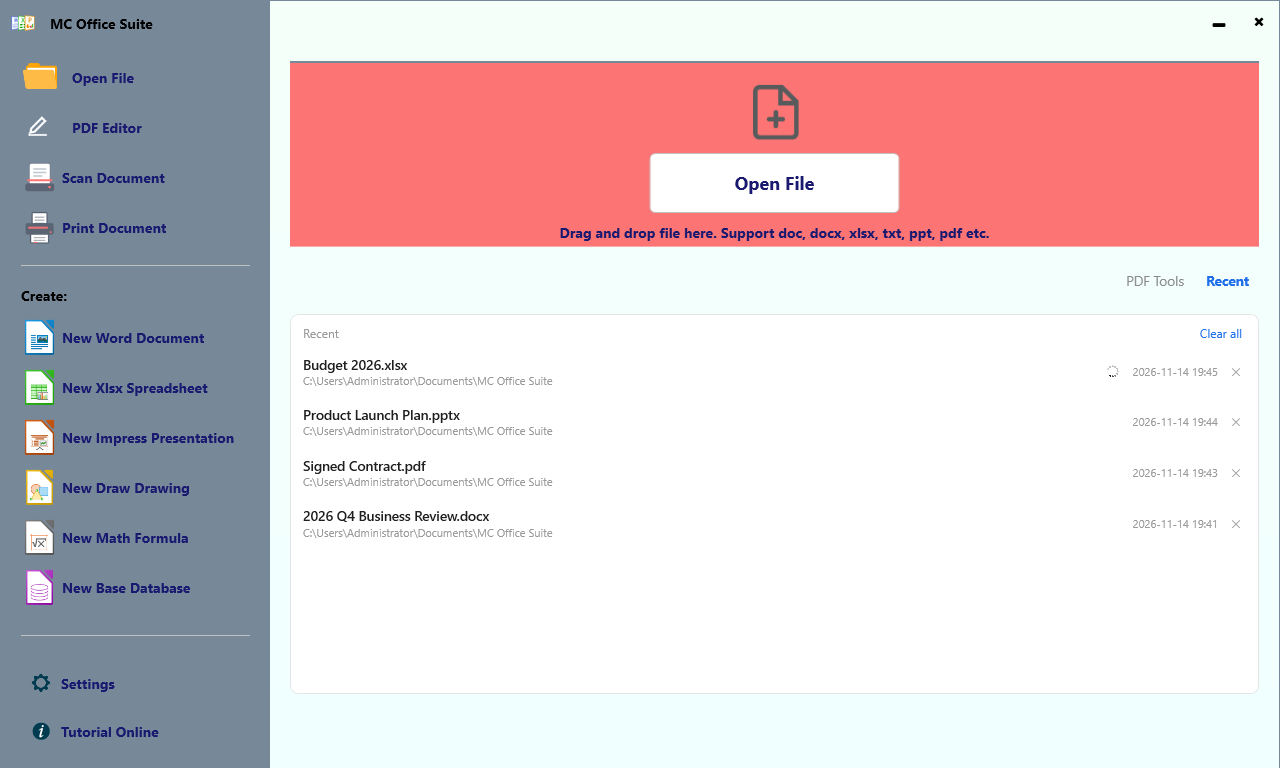
PDF 走的是同一个指示器:等 PDF 编辑器的窗口出来之后同样再停几秒。
PDFs use the same indicator: it waits for the PDF editor window and then holds for a few seconds as well.
3. 打开文档更稳3. More reliable opening
以前 office 模块启动较慢时,可能在还在启动的过程中就被判成「打开失败」;这一版改成只要 office 进程还活着就继续等,低配机器冷启动也不会被误判。
Previously a slow office start could be reported as a failure while it was still starting up. The app now keeps waiting as long as the office process is alive, so even a cold start on a slow machine is not misjudged.
- 真卡死才动手:连续两分钟没有任何界面、CPU 时间也毫无推进,才判定卡住;这时只清理这次启动带出来、从未显示过窗口的 office 进程,然后按原参数重开一次;
- 连点不会越点越糟:同一份文档在 10 秒内被反复请求,会复用同一次启动,而不是再起一个新实例;
- 失败时说清原因:真打不开会给出可读的原因(含退出码解释),并可直接 Send feedback,日志自动附上。
- Only intervene when it is really stuck — two full minutes with no window and no CPU progress counts as stuck; then the app cleans up only the office processes spawned by this launch that never showed a window, and starts them again with the same arguments;
- Repeated clicks are harmless — asking for the same document again within 10 seconds reuses the launch in flight instead of spawning another instance;
- Readable failures — if it really cannot open, you get an explanation (including what a non-zero exit code means) and a Send feedback button with the logs attached.
4. Feedback Assistant(反馈助手)4. Feedback Assistant
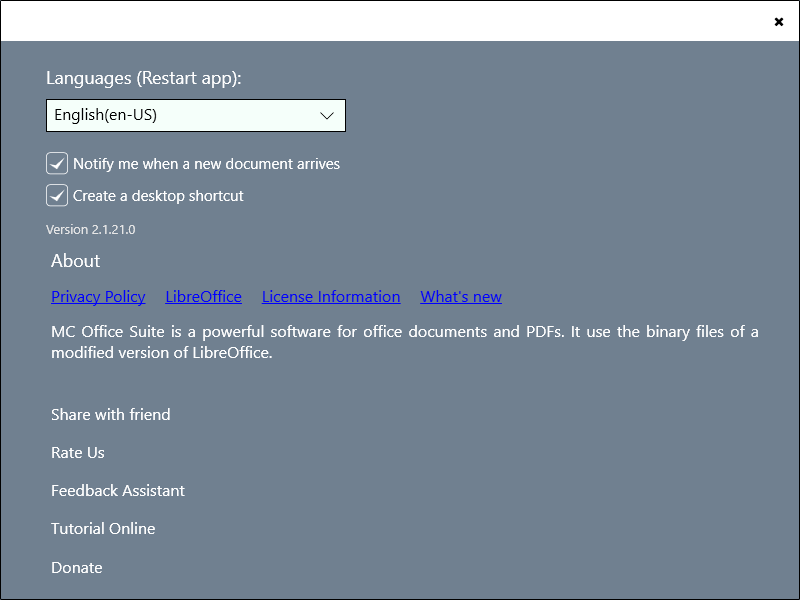
设置页里,Feedback Assistant 和 Send feedback 是两个并列的入口:前者用对话整理问题,后者是你自己写。遇到说不清的问题,选前者。
In Settings, Feedback Assistant sits next to Send feedback: the former helps you put the problem into words through a short conversation, the latter is the form you write yourself. If the problem is hard to describe, start with the assistant.
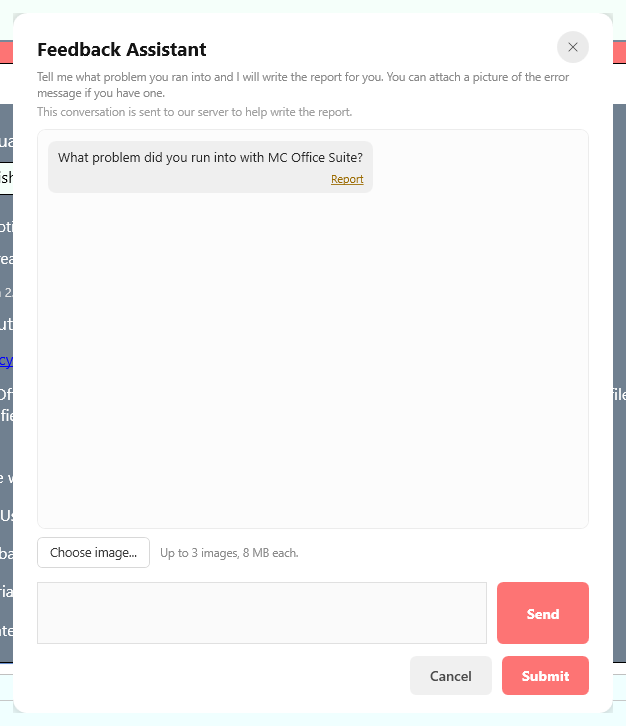
- 用自己的话描述:「双击 docx 之后一直转圈,Word 窗口没出来」;助手会追问关键细节(哪个功能、什么时候开始、能否复现);
- 有报错截图的话可以点 Choose image… 附上(最多 3 张,每张 8 MB);
- 整理好后点 Submit,助手直接建单,弹窗给出工单编号——不用再填一遍反馈表;
- 每条 AI 回复下面都有 Report,如果回复不对或不合适,点一下就能举报。
- Describe it in your own words: “double-clicking a docx just spins, no Writer window” — the assistant asks for the details that matter (which feature, when it started, whether it is reproducible);
- If you have a screenshot of the error, use Choose image… (up to 3 images, 8 MB each);
- When it reads right, press Submit: the assistant files the ticket itself and shows you the ticket ID — there is no second form to fill in;
- Every AI reply has a Report link, so you can flag a reply that is wrong or inappropriate.
5. 反馈会带上什么5. What a report carries
为了让问题能一次定位,反馈会自动附带:
So that a report can be acted on the first time, it carries:
- 今天和昨天的日志(按模块分文件:外壳与 office 启动、打印、PDF 编辑器、office 商店桥、扫描);
- Windows 事件日志里本套件相关进程的崩溃记录(异常码 + 故障模块);
- 应用与包版本、系统版本、界面语言、许可状态、你最近打开过的文档路径。
- Today's and yesterday's logs, split by module (shell and office launches, printing, PDF editor, office store bridge, scanning);
- Crash records for the suite's processes from the Windows event log (exception code and faulting module);
- App and package version, OS version, UI language, licence state, and the paths of the documents you opened recently.
其它入口Where to go next
- Page3:如何打开文档 —— 主界面、拖放、右键菜单;
- Page17:右键菜单 —— 打开、转 PDF、PDF 转各种格式;
- Page20:打印文档 —— 从主界面或右键菜单打印;
- PDF 编辑器教程 —— 编辑、批注、签名与打印。
- Page 3: opening documents — home screen, drag and drop, right-click menu;
- Page 17: right-click menu — open, convert to PDF, PDF to other formats;
- Page 20: printing — print from the main window or the right-click menu;
- PDF editor tutorial — edit, annotate, sign and print.