
1. 扫描模块是什么1. What the Scanner module is
扫描是套件里的一个独立模块(窗口标题 MC Office Suite — Scanner):把纸变成 PDF,或者把图片 / PDF 导入成页面,整理好后存成一个 PDF 或一组图片。它属于 MC Office Suite Pro。
Scanning is a standalone module of the suite (its window is titled MC Office Suite — Scanner): turn paper into PDF, or import images / a PDF as pages, arrange them, then save one PDF or a set of images. It is part of MC Office Suite Pro.
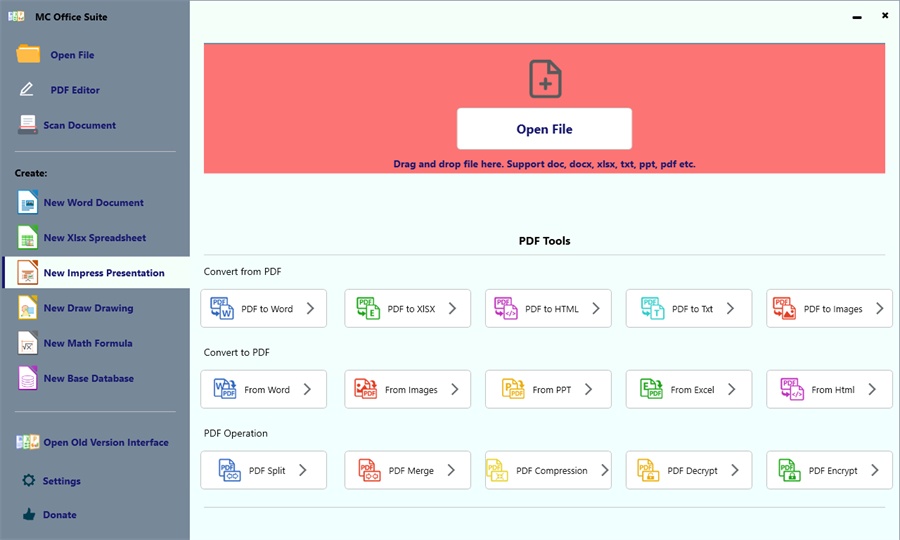
2. 第一次打开2. The first time you open it
模块会自己去找 Windows 里装好的扫描仪(WIA 驱动)。两个可能:
The module looks for installed scanners through their Windows (WIA) driver. Two outcomes:
A. 已经找到扫描仪A. A scanner was found
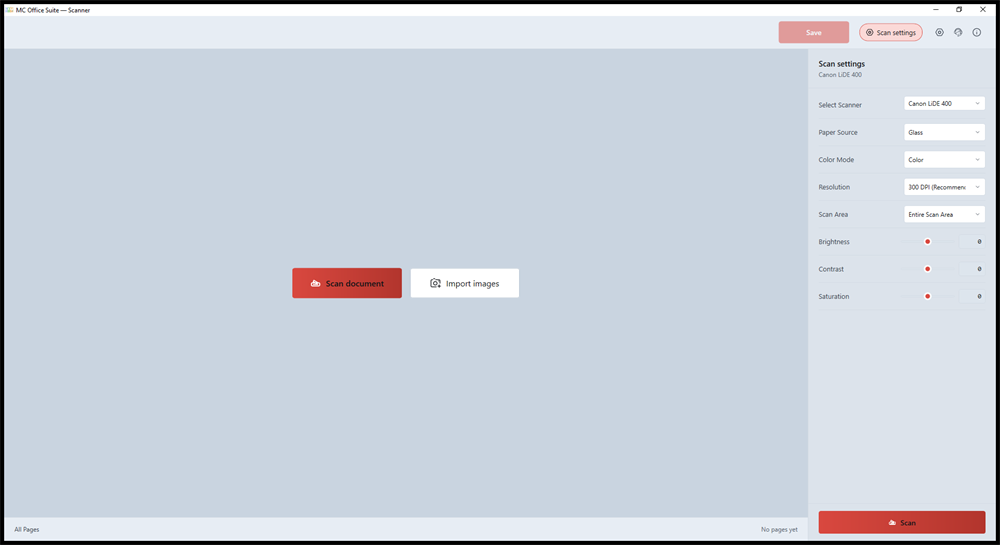
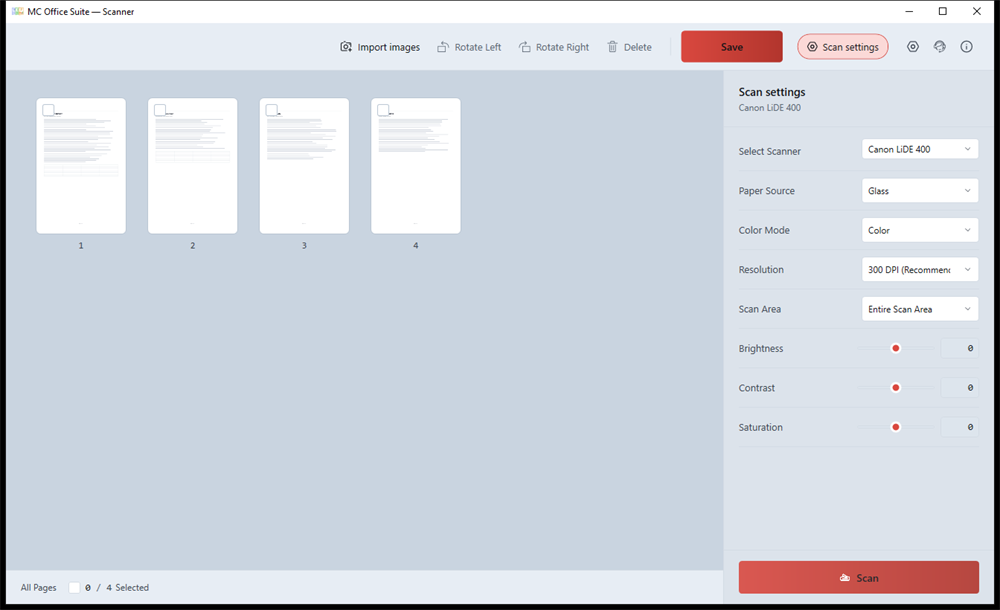
- 右侧 Scan settings 顶部会显示扫描仪名字(下图是 Canon LiDE 400);
- 下面依次是 Select Scanner / Paper Source / Color Mode / Resolution / Scan Area,以及亮度、对比度、饱和度三个滑杆;
- 右下角那个大按钮 Scan 就是开始扫描。
- The scanner name appears at the top of Scan settings (Canon LiDE 400 below);
- Then Select Scanner / Paper Source / Color Mode / Resolution / Scan Area, plus brightness, contrast and saturation sliders;
- The big Scan button at the bottom-right starts scanning.
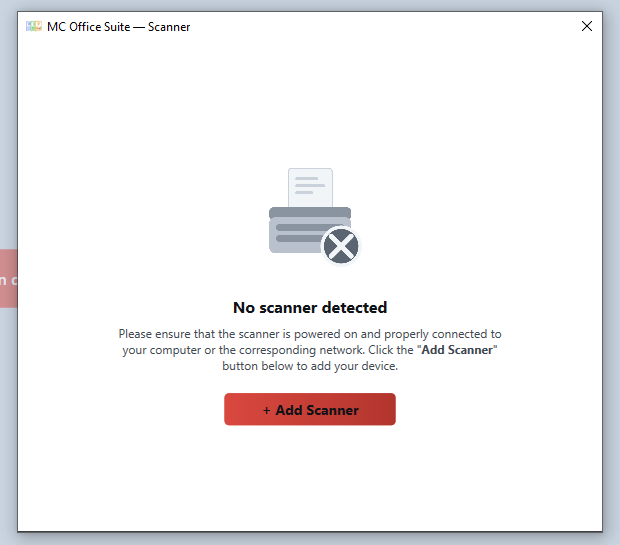
B. 没找到扫描仪B. No scanner was found
模块会弹一个明确的提示:检查电源和连接、按 + Add Scanner 打开 Windows 的扫描仪设置装驱动。这种情况下不会弹购买窗——先解决设备,购买提示留到你真正用功能的时候。
A clear message appears: check power and the cable, then press + Add Scanner to open the Windows scanner settings and install the driver. No purchase window pops up in this state — fix the hardware first, the upgrade prompt waits.
3. 扫描一叠纸(送纸器最省事)3. Scan a stack of paper
- 在 Paper Source 里选进纸方式:Glass 平板(一次一页)、送纸器 / 双面(一次整叠);
- Color Mode 选 Color / Gray;纯文字想省体积可选黑白;
- Resolution 文档一般 300 DPI(推荐);
- Scan Area 选 Entire Scan Area 用整块扫描区域,也可以选 A4 / Letter;
- 点右下角 Scan。送纸器会一次把所有纸送完,每扫到一页,中间页面区就多一张带页码的缩略图;
- 扫完顶部工具条会多出 Import images / Rotate Left / Rotate Right / Delete。
- Under Paper Source pick how paper feeds: Glass (one page), feeder or duplex (whole stack);
- Color Mode: Color / Gray — black and white saves space for text;
- Resolution: 300 DPI is the recommended default for documents;
- Scan Area: Entire Scan Area uses the full glass, or pick A4 / Letter;
- Press Scan at the bottom-right. The feeder pulls the whole stack; each page shows up as a numbered thumbnail;
- Afterwards the toolbar gains Import images / Rotate Left / Rotate Right / Delete.
4. 整理页面4. Arranging the pages
每张缩略图左上角有勾选框,底部显示 All Pages … N Selected。顶部工具条按勾选的页面生效:
Each thumbnail has a checkbox; the bottom bar shows All Pages … N Selected. The toolbar acts on the checked pages:
- Rotate Left / Rotate Right:旋转 90°(扫歪了就靠它);
- Delete:删掉勾选的页面(空白页、夹纸页);
- 拖拽缩略图:换页序,PDF 按这个顺序输出;
- 双击缩略图:打开整页预览(下一步)。
- Rotate Left / Rotate Right — rotate 90° (for crooked pages);
- Delete — drop the checked pages (blanks, jams);
- Drag a thumbnail — change the order, which the PDF follows;
- Double-click a thumbnail — open the full-page preview (next step).
5. 整页预览与微调5. Full-page preview and fine-tuning
双击任意缩略图打开预览窗口:
Double-click any thumbnail to open the preview:
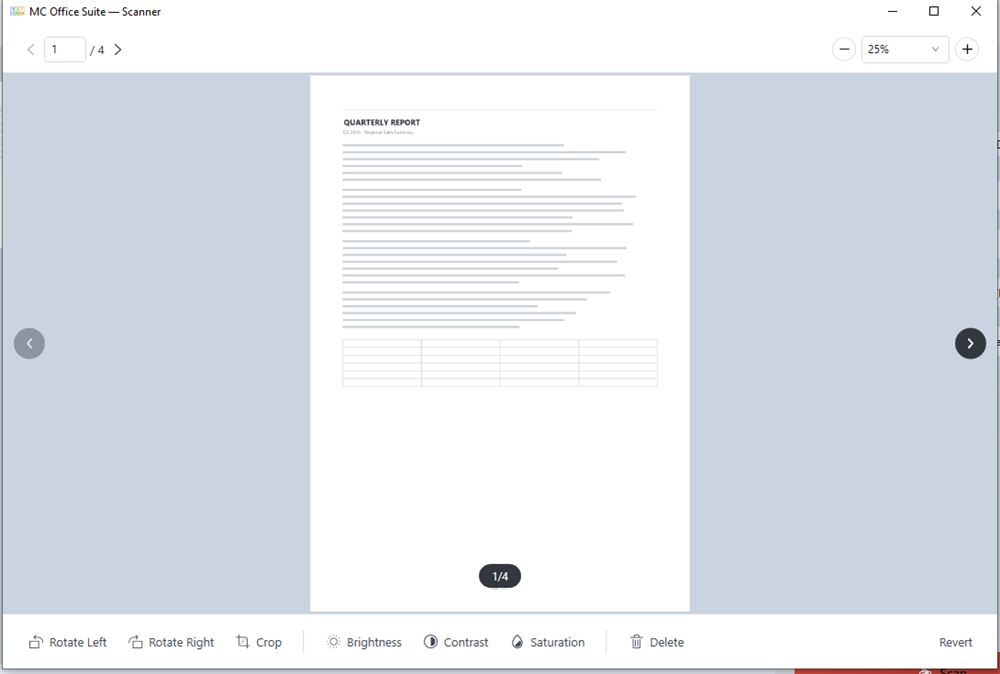
- 翻页:左上
‹ 1 / 4 ›; - 缩放:右上百分比下拉 + − / +;
- Rotate Left / Rotate Right:单页旋转;
- Crop:框选掉黑边、手指、桌面;
- Brightness / Contrast / Saturation:偏灰的扫描件把 Contrast 提一点就干净了;
- Delete:删掉这一页;Revert:把这一页的所有调整还原成原始扫描件。
- Paging —
‹ 1 / 4 ›at the top-left; - Zoom — the percentage list at the top-right plus − / +;
- Rotate Left / Rotate Right — rotate this page;
- Crop — cut away dark edges, fingers or the desk;
- Brightness / Contrast / Saturation — a touch of Contrast cleans up greyish scans;
- Delete — remove this page; Revert — undo every adjustment back to the original scan.
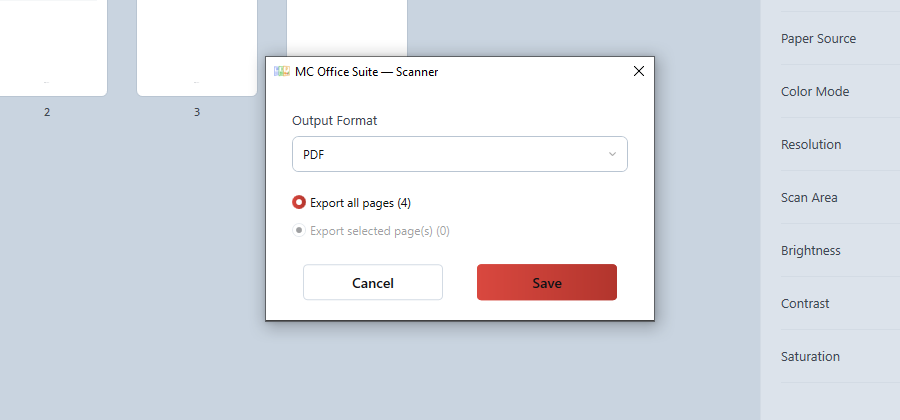
6. 保存成 PDF / 图片6. Save as PDF or images
- 点右上角 Save;
- Output Format 选 PDF(多页合成一个文件)/ JPG / PNG(按页出图);
- 选 Export all pages(全部)或 Export selected page(s)(只导勾选的);
- 点 Save,选保存位置;完成后可以直接打开文件或所在文件夹。
- Click Save at the top-right;
- Output Format: PDF (all pages in one file) / JPG / PNG (one image per page);
- Choose Export all pages or Export selected page(s);
- Click Save and pick a destination; afterwards you can open the file or its folder.
7. 解锁 Pro($4.99 / $49.99)7. Unlocking Pro ($4.99 / $49.99)
免费状态可以导入、扫描、整理和预览;保存导出时会提示升级。点工具条的 Upgrade(或提示里的按钮)打开购买窗:
Free use covers importing, scanning, arranging and previewing; exporting asks for the upgrade. Click Upgrade in the toolbar (or the button in the prompt) to open the purchase window:
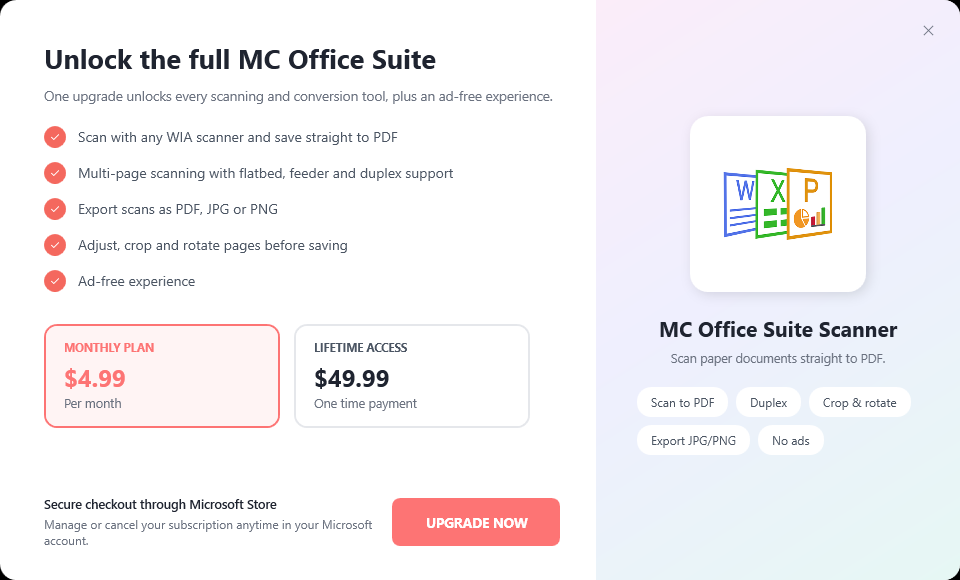
- MONTHLY PLAN:$4.99 / 月,可随时在微软账户里取消;
- LIFETIME ACCESS:$49.99 一次性买断;
- 价格联网时由 Microsoft Store 实时给出(当地货币),上面是美元兜底价;
- 买一次,MC Office Suite 与扫描模块同时解锁(同一份加载项授权)。
- MONTHLY PLAN — $4.99 / month, cancellable in your Microsoft account;
- LIFETIME ACCESS — $49.99 one-time purchase;
- Prices come from the Microsoft Store at runtime (local currency); the dollar values are the offline fallback;
- One purchase unlocks both MC Office Suite and the Scanner module (same add-on entitlement).