
1. 这个功能是什么1. What it does
从 2.1.19 开始,MC Office Suite 会在 Windows 资源管理器的右键菜单里注册一个一级菜单 MC Office Suite。不用先打开应用,右键文件就能:
Since 2.1.19, MC Office Suite registers a top-level entry called MC Office Suite in the Windows Explorer right-click menu. Without opening the app first, you can:
- Open with MC Office Suite — 文档交给套件里的 Office 模块,PDF 交给 PDF 编辑器;
- Convert to PDF — 把 Word / Excel / PowerPoint / RTF / TXT / HTML 等直接转成同名 PDF;
- PDF to Word / Excel / Text / HTML / Images — 把 PDF 反向转成这些格式。
- Open with MC Office Suite — documents open in the bundled Office module, PDFs open in the PDF Editor;
- Convert to PDF — turn Word / Excel / PowerPoint / RTF / TXT / HTML files into a PDF next to the original;
- PDF to Word / Excel / Text / HTML / Images — convert a PDF back into those formats.
2. 右键 PDF 文件2. Right-click a PDF
- 在资源管理器里选中一个 .pdf 文件,点鼠标右键;
- 在菜单里找到 MC Office Suite(带一个 > 箭头,说明有二级菜单);
- 把鼠标移到它上面,二级菜单展开。
- Select a .pdf file in File Explorer and right-click it;
- Find MC Office Suite in the menu (the > arrow means it has a submenu);
- Hover it to expand the submenu.
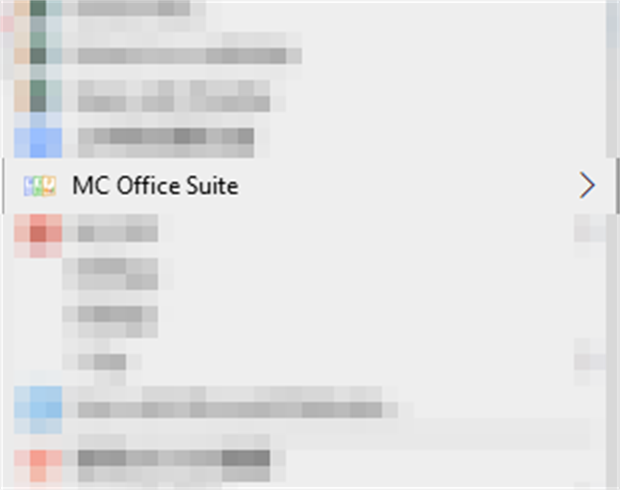
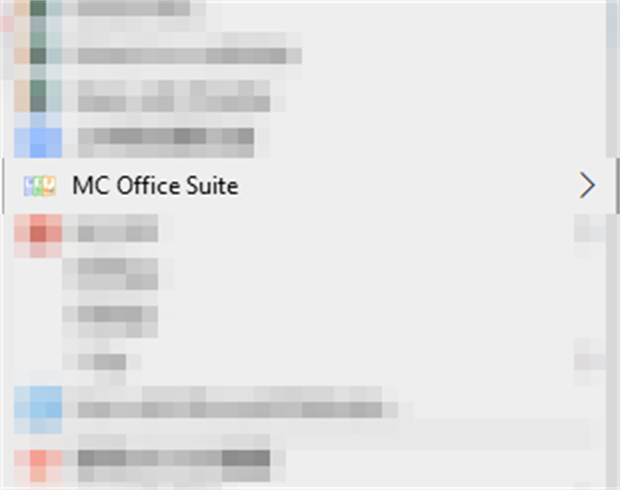
▲ 右键 PDF 时的「MC Office Suite」一级菜单▲ The "MC Office Suite" entry when right-clicking a PDF


▲ 二级菜单:打开 PDF,或者把 PDF 转成 Word / Excel / 文本 / HTML / 图片▲ Submenu: open the PDF, or convert it to Word / Excel / Text / HTML / images
Pro 提示:Pro note:
PDF to Word 属于 Pro 功能,点它会先弹出购买窗口;其余 PDF 转出项和「转 PDF」都是免费的。
PDF to Word is a Pro feature and opens the purchase window first; the other PDF conversions and "Convert to PDF" are free.
3. 右键文档 / 表格 / 演示文稿3. Right-click a document, spreadsheet or presentation
对 .doc / .docx / .rtf / .odt / .txt / .xls / .xlsx / .csv / .ods / .ppt / .pptx / .odp / .html / .xml 这些文件,二级菜单只有两项:
For .doc / .docx / .rtf / .odt / .txt / .xls / .xlsx / .csv / .ods / .ppt / .pptx / .odp / .html / .xml files the submenu has just two entries:


▲ 文档类文件的二级菜单:Open with MC Office Suite / Convert to PDF▲ Submenu for documents: Open with MC Office Suite / Convert to PDF
- Open with MC Office Suite:用套件打开这个文档(等同双击文件关联的行为);
- Convert to PDF:转换后 PDF 生成在原文件旁边,同名 .pdf。
- Open with MC Office Suite — opens the document in the suite (same as double-clicking it);
- Convert to PDF — the PDF is created next to the original with the same name.
4. 转换时会发生什么4. What happens when you convert
- 点 Convert to PDF(或任何一个 PDF 转出项)后,套件会启动一个小的进度窗口,不显示主界面;
- 转换完成后窗口会变成「Done」,这时可以点 Open 直接打开结果,或者点 Show in folder 在资源管理器里定位到文件;
- 点 Close 关闭窗口,套件进程也随之退出,不会留在后台。
- After you click Convert to PDF (or any PDF conversion), a small progress window opens — the main interface is not shown;
- When it finishes the window says "Done". Click Open to open the result, or Show in folder to reveal it in Explorer;
- Click Close and the process exits — nothing is left running in the background.
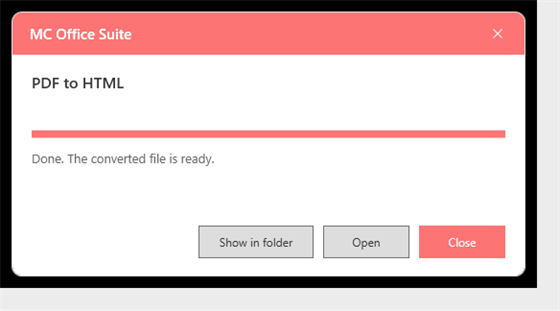
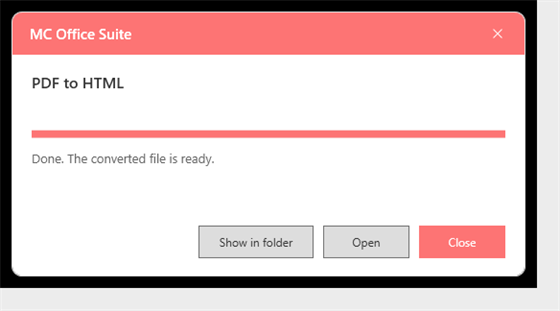
▲ 转换完成后的窗口▲ The window after a conversion finishes
5. 常见问题5. Troubleshooting
- 菜单里没有 MC Office Suite?请升级到 2.1.19 或更高版本;如果刚更新完,关闭并重新打开一次资源管理器(任务管理器里重启「Windows 资源管理器」)。
- 选了多个文件?「Open with」会把它们都打开;转换只按类型处理,混选不同类型时建议一次选一种。
- 转换失败?窗口里会写出失败原因;也可以在
%LOCALAPPDATA%\MCSuite\ContextMenu\invoke.log看到每次调用记录。
- No "MC Office Suite" entry? Make sure you are on 2.1.19 or newer. Just after updating, restart Windows Explorer once (Task Manager → Windows Explorer → Restart).
- Selected several files? "Open with" opens all of them; conversions are driven by the file type, so convert one type at a time when mixing.
- Conversion failed? The window shows the reason; every invocation is also logged to
%LOCALAPPDATA%\MCSuite\ContextMenu\invoke.log.