2.1.19 更新了什么What's new in 2.1.19
这一版加了三个能天天用到的功能(都在 Windows 层面和套件内部打通),设置页也补了开关:
This release adds three everyday features that plug into Windows itself as well as into the suite — plus new switches in Settings:
- 资源管理器右键菜单:右键文档、表格、演示文稿、PDF 就能用套件打开或转换;
- 扫描文档(Pro):直接从扫描仪采集页面,整理后存成一个 PDF;
- 新文档提醒:桌面/下载/文档里出现新的 Office 文档或 PDF 时,右下角提醒你,一键打开。
- 桌面快捷方式开关:设置里勾一下就在桌面创建 MC Office Suite 快捷方式,取消勾选即删除,升级版本后依然有效。
- Explorer right-click menu — open or convert documents, spreadsheets, presentations and PDFs straight from Explorer;
- Scan documents (Pro) — feed pages from your scanner and save them as one PDF;
- New document reminder — when a new Office document or PDF shows up in Desktop / Downloads / Documents, a bottom-right card lets you open it in one click.
- Desktop shortcut switch — one tick in Settings creates an MC Office Suite shortcut on the Desktop, untick it and the shortcut is removed; it keeps working after updates.
1. 右键菜单1. Explorer right-click menu
在资源管理器里右键文件,多了一个一级菜单 MC Office Suite:
Right-clicking a file in Explorer now shows a top-level MC Office Suite entry:
- Office 文档 / 表格 / 演示文稿 → Open with MC Office Suite、Convert to PDF
- PDF → Open with MC Office Suite、PDF to Word / Excel / Text / HTML / Images
- Office documents / spreadsheets / presentations → Open with MC Office Suite, Convert to PDF
- PDF → Open with MC Office Suite, PDF to Word / Excel / Text / HTML / Images


👉 完整步骤:Page17:右键菜单教程
👉 Step-by-step guide: Page 17: Right-click menu tutorial
2. 扫描文档(Pro)2. Scan documents (Pro)
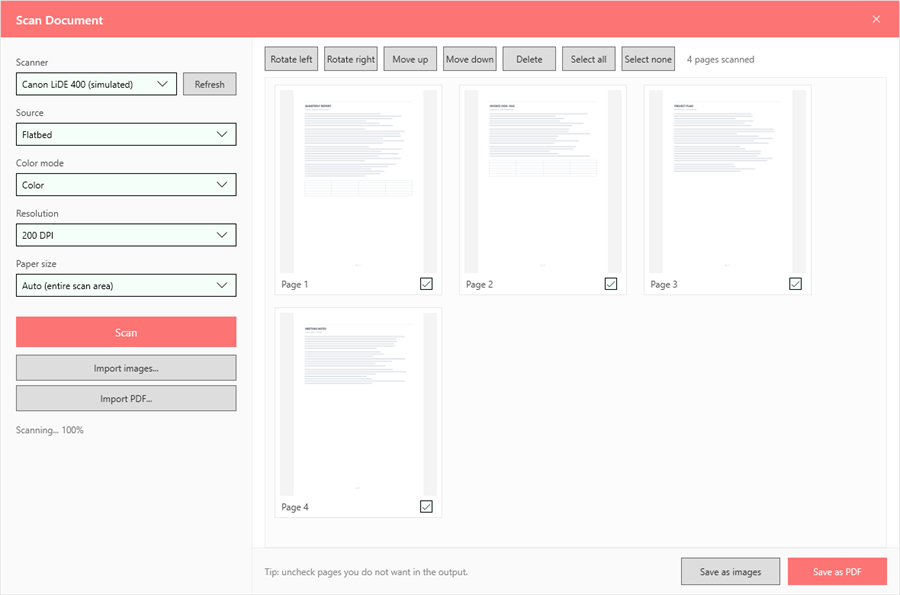
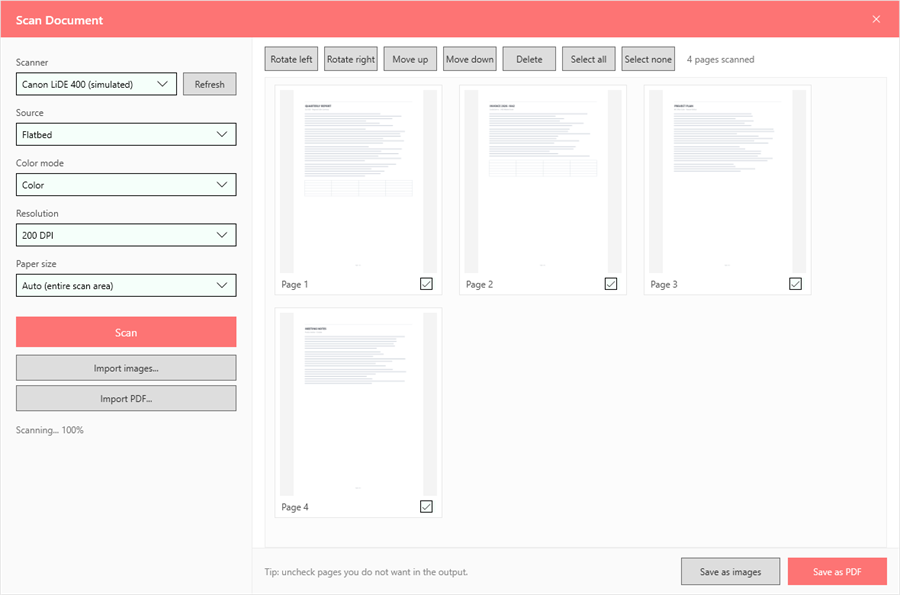
主界面左栏新增 Scan Document。选扫描仪 → 选进纸方式/色彩/分辨率/纸张 → Scan → 旋转、排序、删除页面 → Save as PDF。页面按每页 DPI 换算真实纸张尺寸,300 DPI 的 A4 就是 A4。
A new Scan Document entry in the left column: pick the scanner, choose source / colour / resolution / paper size, press Scan, then rotate, reorder or delete pages and press Save as PDF. Pages use their real paper size derived from DPI — a 300 DPI A4 scan becomes A4.
👉 完整步骤:Page18:扫描文档教程
👉 Step-by-step guide: Page 18: Scan documents tutorial
3. 新文档提醒3. New document reminder
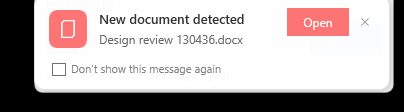
登录后有一个很小的后台进程盯着桌面 / 下载 / 文档。新的 Word、Excel、PPT、PDF 一落地,右下角就弹卡片,点一下就打开(PDF 走 PDF 编辑器)。卡片上有 Don't show this message again,勾上就再也不弹,也可以在设置里重新打开。
After sign-in a tiny background process watches Desktop / Downloads / Documents. As soon as a new Word, Excel, PowerPoint or PDF file lands there, a card appears bottom-right — one click opens it (PDFs in the PDF Editor). The card has a Don't show this message again checkbox; tick it and it stops for good, and Settings can turn it back on.
👉 完整步骤:Page19:新文档提醒教程
👉 Step-by-step guide: Page 19: New document reminder tutorial
4. 设置里的桌面快捷方式4. Desktop shortcut switch in Settings
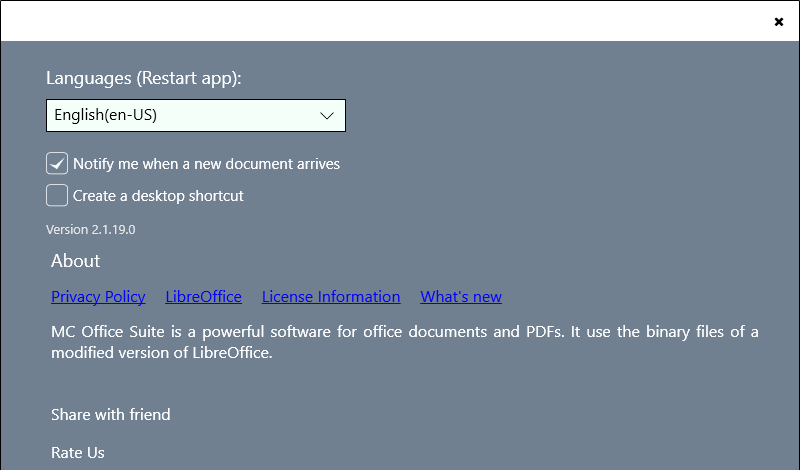
设置页新增 Create a desktop shortcut:勾选后立刻在桌面放一个 MC Office Suite 快捷方式,取消勾选就删掉。快捷方式按包身份启动,所以应用升级后依然有效,不会变成死链接。
Settings now has a Create a desktop shortcut switch: tick it and a MC Office Suite shortcut appears on the Desktop; untick it and the shortcut is removed. The shortcut launches the packaged app by identity, so it keeps working across updates.
5. 其它改进5. Other improvements
- 菜单图标统一:右键菜单的一级图标换成 MC Office Suite 自己的应用图标,不再沿用其它产品的标识;
- 「Convert to PDF」换了新图标:文档 + PDF 徽标,一眼能认出是转 PDF;
- PDF 统一交给 PDF 编辑器:从右键菜单、文件关联、拖拽打开 PDF,都会进套件内的 PDF 编辑器;
- 转换窗口更清楚:转换时会显示进度、结果和失败原因,完成后可以直接 Open 或 Show in folder;
- 设置页新增两个开关:新文档提醒、创建桌面快捷方式;并新增 License Information 链接(指向我们的许可证与源码页面);
- 稳定性修复:提醒进程在某些安装布局下无法启动的问题已修好;打包时会校验右键菜单与提醒进程是否齐备。
- Consistent menu branding — the context menu now shows MC Office Suite's own app icon instead of another product's mark;
- New "Convert to PDF" icon — a document with a PDF badge, unmistakable at a glance;
- PDFs always go to the PDF Editor — from the right-click menu, file association or drag & drop;
- Clearer conversion window — progress, result and failure reason, plus Open / Show in folder when it finishes;
- Two new switches in Settings — new-document reminder and desktop shortcut — plus a License Information link to our licence & source-code page;
- Stability fixes — the reminder process could fail to start under some package layouts (fixed), and packaging now verifies that the context menu and the reminder are both present.
6. 如何更新6. How to update
- 打开 Microsoft Store → 「库」→ 找到 MC Office Suite → 检查更新(或直接点下面的按钮);
- 更新到 2.1.19 后,第一次启动会自动打开这个页面(就是你现在看到的),之后不再打扰;
- 如果右键菜单没有立刻出现,重启一次资源管理器即可。
- Open Microsoft Store → Library → MC Office Suite → Check for updates (or use the button below);
- On the first launch after updating to 2.1.19 this page opens automatically — once, and never again;
- If the right-click menu does not show up immediately, restart Windows Explorer once.
