
1. 这个功能是什么1. What it does
从 2.1.19 开始,套件里带了一个很小的后台进程(登录时自动启动),它盯着桌面、下载、文档这三个文件夹。只要有新的 Word / Excel / PowerPoint / PDF 文件落进来,屏幕右下角就会弹出一张提示卡片,点一下就能用套件打开——不用自己去资源管理器里翻。
Since 2.1.19 the suite ships a tiny background process (started automatically at sign-in) that watches Desktop, Downloads and Documents. Whenever a new Word / Excel / PowerPoint / PDF file lands there, a card pops up in the bottom-right corner — one click opens it in the suite, no digging through Explorer.
2. 什么情况会提醒2. When it notifies
- 监测的扩展名:
.doc .docx .docm .dot .dotx .rtf .odt、.xls .xlsx .xlsm .xlt .csv .ods、.ppt .pptx .pptm .odp、.pdf; - 只对新出现的文件提醒(新建、下载、复制进来、改名成这些格式都算);
- 下载中的文件不会被误报:会等文件写完(约 1 秒)+ 确认能读、不是 0 字节、不是隐藏/临时文件才提醒;
- 同一个文件 10 秒内不会重复提醒。
- Watched extensions:
.doc .docx .docm .dot .dotx .rtf .odt,.xls .xlsx .xlsm .xlt .csv .ods,.ppt .pptx .pptm .odp,.pdf; - Only newly arrived files trigger it (created, downloaded, copied in, or renamed into one of those types);
- Files still downloading are not reported: it waits for the write to settle (~1 second), then checks readability, non-zero size and that it is not hidden or temporary;
- The same file is not reported twice within 10 seconds.
3. 提示卡片长什么样3. The notification card
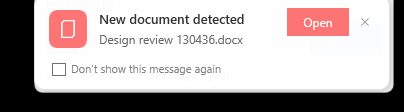
- 卡片里显示识别到的文件名;
- 点 Open(或者直接点卡片任意位置)→ 用 MC Office Suite 打开它:PDF 会交给 PDF 编辑器,其它文档交给 Office 模块;
- 点 ✕ 关掉卡片,不打开文件;
- 不理会它的话,8 秒后自己消失。
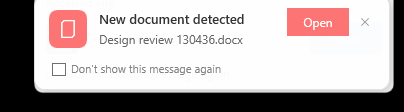
- The card shows the detected file name;
- Click Open (or click anywhere on the card) to open it with MC Office Suite — PDFs go to the PDF Editor, other documents go to the Office module;
- Click ✕ to dismiss it without opening anything;
- If you ignore it, it fades away after 8 seconds.
4. 不想再收到提醒4. Turning it off
卡片底部有一个勾选框 Don't show this message again。勾上之后关闭这张卡片,后台进程会把开关写进设置并退出,之后不再弹任何提示。
The card has a Don't show this message again checkbox at the bottom. Tick it and close the card — the background process writes the preference into the settings and exits, and no further notifications appear.
5. 设置页里的两个开关5. The two switches in Settings
主界面左栏点 Settings,语言下拉框下面就是这两个开关,改完立即生效,不需要重启应用。
Click Settings in the left column — the two switches sit right under the language drop-down and take effect immediately, no restart needed.
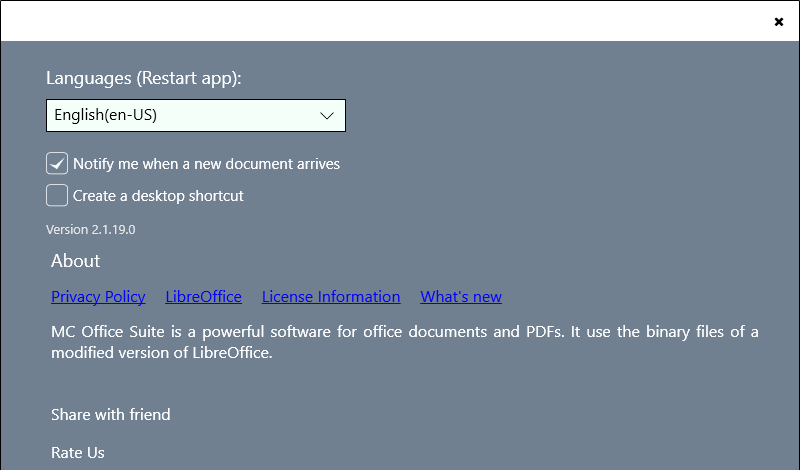
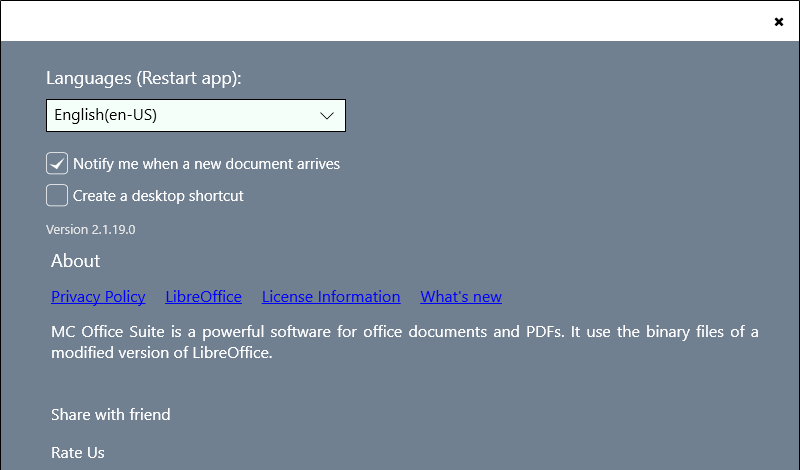
Notify me when a new document arrivesNotify me when a new document arrives
- 勾选(默认):后台进程在跑,新文档会出现右下角提醒;
- 取消勾选:提醒进程立刻退出,以后不再提醒——和卡片上勾「Don't show this message again」是同一个开关;
- 重新勾选:立刻恢复提醒,不用重新登录。
- Ticked (default): the background process runs and new documents pop up in the bottom-right;
- Unticked: the reminder process exits immediately and stops notifying — it is the same switch as "Don't show this message again" on the card;
- Tick it again: notifications come back immediately, no sign-out needed.
Create a desktop shortcutCreate a desktop shortcut
- 勾选后,桌面立刻出现一个 MC Office Suite 快捷方式,图标就是套件自己的图标;
- 双击它的效果和从开始菜单启动完全一样(走包身份,不是直接跑 exe);
- 取消勾选,桌面上的快捷方式会被删除;
- 应用升级版本后快捷方式仍然有效,不会变成指向旧版本路径的死链接;
- 如果桌面被组策略重定向等原因写不进去,会弹窗提示并把勾自动去掉,不会留下"看起来勾着其实没建"的状态。
- Tick it and a MC Office Suite shortcut appears on the Desktop immediately, carrying the suite's own icon;
- Double-clicking it is identical to launching from the Start menu (it activates the packaged app, not a raw exe);
- Untick it and the shortcut is deleted;
- The shortcut keeps working after the app updates — it never points at a stale version path;
- If the Desktop cannot be written to (e.g. redirected by group policy) a message is shown and the tick is cleared automatically, so the UI never claims something that is not there.
版本号Version
开关下面那行 Version 2.1.19.0 读的是 MSIX 包标识里的版本,和 Microsoft Store 列表上显示的完全一致——遇到问题要报版本号时,直接念这一行就行。
The Version 2.1.19.0 line under the switches reads the version from the MSIX package identity, identical to what the Microsoft Store listing shows — quote that line when reporting an issue.
6. About 链接:更新说明与 License Information6. About links: What's new and License Information
About 这一行有四个链接:Privacy Policy、LibreOffice、License Information、What's new。其中 What's new 就是本版的更新说明页——首次启动自动弹过一次之后,随时可以点这里再看。
The About row has four links: Privacy Policy, LibreOffice, License Information and What's new. The last one is this release-notes page — after the automatic first-launch popup you can always reopen it from here.
设置页 About 里的 License Information 打开的是我们的许可证与源码页面:里面有 office 模块(LibreOffice 派生)的 MPL-2.0 声明和对应源码的下载地址。
The License Information link in the About area opens our licence & source-code page: it carries the MPL-2.0 statement for the office module (a LibreOffice derivative) and the download address of the corresponding source.