
2.1.20 更新了什么What's new in 2.1.20
这一版的重点是「打印」和「更稳的启动」,另外补了恢复购买与反馈截图:
This release focuses on printing and a more reliable start, plus two smaller additions — restore purchase and screenshots in feedback:
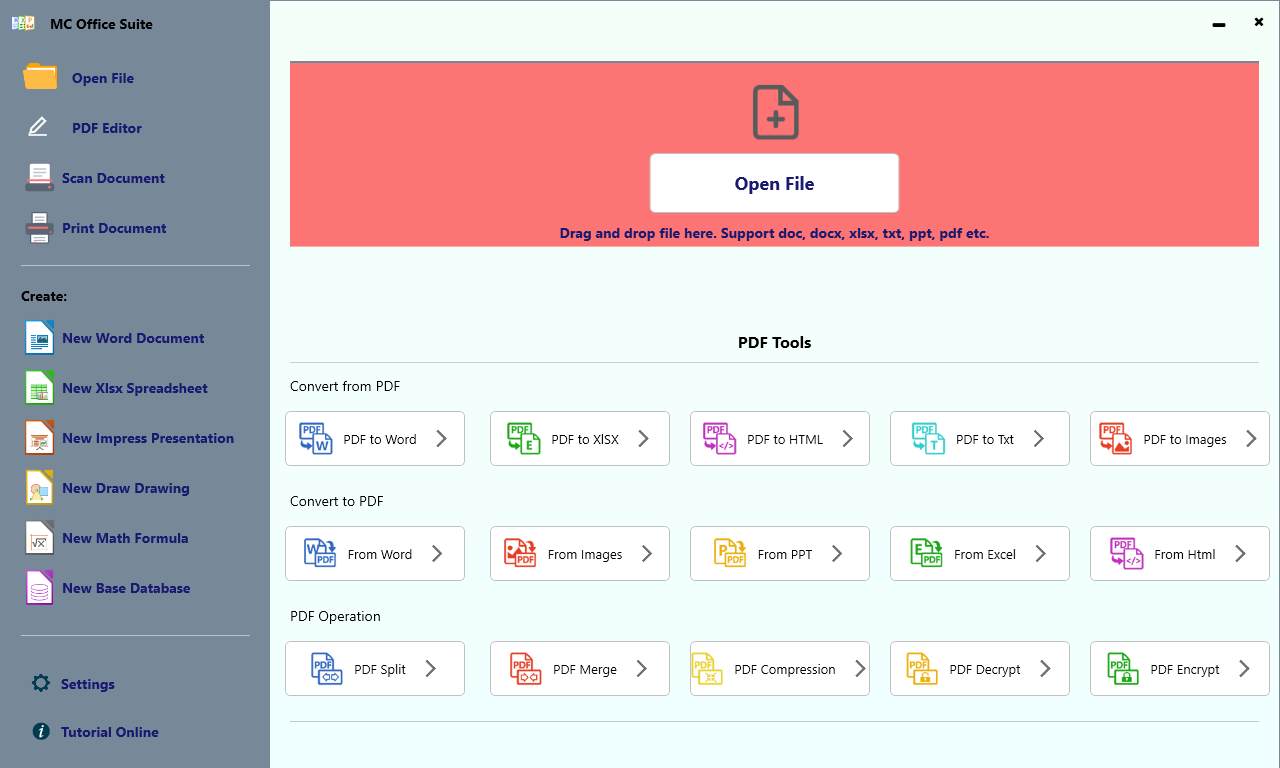
- 内置打印:主界面新增 Print Document,资源管理器右键菜单新增 Print,选中文件后直接进入打印界面;
- 打开文档更稳:启动较慢时不再提示启动失败,首启教程页与评分提示也不再挡在文档前面;
- 恢复购买:购买窗口新增「恢复购买」,一键找回此前的购买记录;
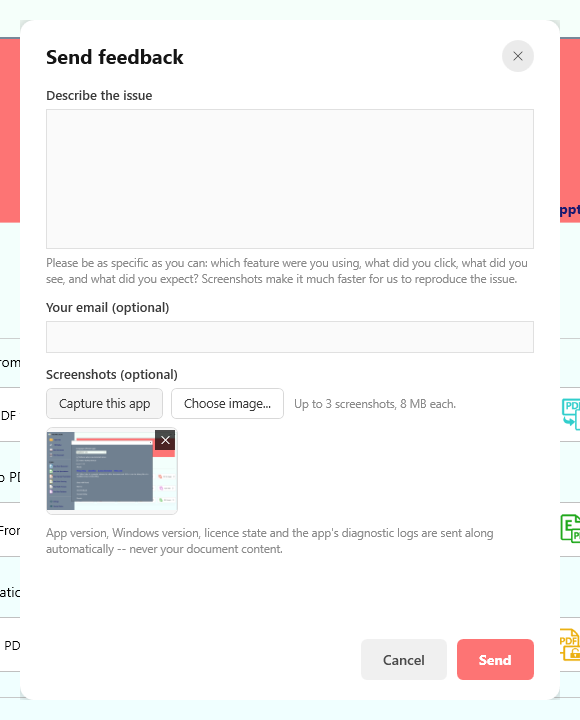
- 反馈可附截图:一键截取当前界面,或选择本地图片,随反馈一起提交。
- Built-in printing — a new Print Document button in the app and a Print entry in the Explorer right-click menu take you straight to the print screen for the file you picked;
- More reliable opening — a slow first start is no longer reported as a failure, and the first-run tutorial page and rating prompt no longer pop up in front of your document;
- Restore purchase — the purchase window has a new “Restore purchase” link that brings back an earlier purchase;
- Screenshots in feedback — capture the current screen or attach your own image, and send it with your report.
1. 内置打印1. Printing is built in
主界面左栏多了 Print Document;资源管理器里右键文件,MC Office Suite 菜单里也多了 Print。两个入口都会略过主界面,直接停在该文件的打印界面。
The main window has a new Print Document entry in the left column, and the MC Office Suite right-click menu in Explorer gained a Print item. Both skip the home screen and open the print screen for the selected file.
👉 完整步骤:Page20:打印文档教程
👉 Step-by-step guide: Page 20: printing tutorial
2. 打开文档更稳2. More reliable opening
以前在较慢的机器上第一次打开文档,可能在办公室模块还在启动时就被判成「打开失败」;这一版放宽了判断,只要窗口真的起来了就会正常打开。另外,首次启动的教程页和评分提示不再抢在文档前面弹出。
On slow machines, the first document you opened could be reported as a failure while the office module was still starting. This release loosens that check, so a document opens as long as its window actually appears. The first-run tutorial page and rating prompt no longer jump in front of your document either.
3. 恢复购买3. Restore purchase
购买窗口底部新增 Already purchased? Restore。换了电脑、重装过,或换用另一个 Microsoft 账户登录后,点一下就能把此前的购买记录找回来,不必再付一次钱。
The purchase window now has an Already purchased? Restore link at the bottom. After moving to a new PC, reinstalling, or signing in with another Microsoft account, one click brings your previous purchase back — no need to pay twice.
恢复成功后套件里的各个模块(office 模块、PDF 编辑器、打印模块)会立刻认得这份状态。
Once restored, every module in the suite (office module, PDF editor, print module) recognises that state immediately.
4. 反馈可以附截图4. Attach screenshots to feedback
反馈窗口新增「截图(可选)」:
The feedback window now has a “Screenshots (optional)” area:
- 截取当前界面:自动把应用窗口截下来,最多 3 张;
- 选择图片:附上你自己用截图工具截的图;
- 缩略图右下角可以逐张删除。
- Capture this app — grabs the application window for you, up to 3 shots;
- Choose image... — attach a picture you took yourself;
- Each thumbnail can be removed before sending.
其它入口Where to go next
- Page20:打印文档 —— 从主界面或右键菜单打印;
- Page17:右键菜单 —— 打开、转 PDF、PDF 转各种格式;
- Page18:扫描文档 —— 扫描仪采集并整理成 PDF;
- PDF 编辑器教程 —— 编辑、批注、签名与打印。
- Page 20: printing — print from the main window or the right-click menu;
- Page 17: right-click menu — open, convert to PDF, PDF to other formats;
- Page 18: scan documents — scan and arrange pages into one PDF;
- PDF editor tutorial — edit, annotate, sign and print.