
How to Convert PDF to Word
如何将 PDF 转 Word
Convert your PDF documents into editable Word files (.docx / .doc). Works in both the New UI and Classic Mode, supports page range and OCR for scanned PDFs.
将 PDF 文档转换为可编辑的 Word 文件(.docx/.doc)。新版界面与经典模式均支持,可设置页范围,扫描件支持 OCR 识别。
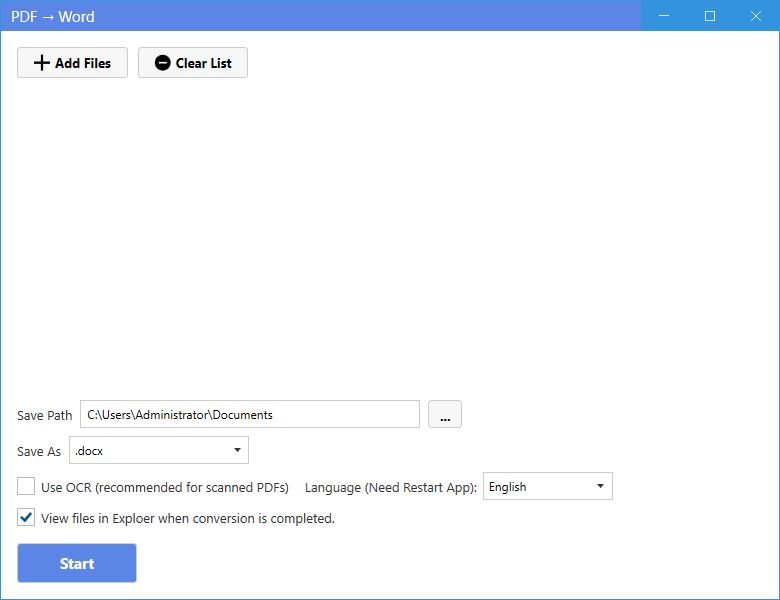
New UI
新版界面
- On the home page, click PDF to Word in the "PDF to Other Formats" section.
- 在主页"PDF 转其他格式"区域点击 PDF 转 Word。
- Click Add Files and select one or more PDF files.
- 点击添加文件,选择一个或多个 PDF 文件。
- Choose the output format (.docx or .doc). Optionally set a page range — leave empty for all pages, or enter e.g. 2-5, 1,3, 1,3,5.
- 选择输出格式(.docx 或 .doc)。可按需设置页范围——留空为全部页,或输入如 2-5、1,3、1,3,5。
- For scanned PDFs, tick Use OCR and choose the language so text becomes editable.
- 扫描件可勾选使用 OCR 并选择语言,使文字可编辑。
- Click Start. When finished, use the folder / open buttons in the list to locate the result.
- 点击开始转换。完成后可用列表中的"文件夹/打开"按钮定位结果。
Classic Mode
经典模式
- Click Classic Mode in the top-right corner, then click the DOCX card on the home page.
- 点击右上角经典模式,在主页点击 DOCX 卡片。
- Add PDF files, choose the format, tick OCR if needed, and press Start.
- 添加 PDF 文件,选择格式,需要时勾选 OCR,点击开始。
Tip: The page range field supports single pages, ranges and non-continuous pages, e.g. 3, 2-5, 1,3,5, 1-3,7.
提示:页范围支持单页、范围与不连续页,如 3、2-5、1,3,5、1-3,7。