
Coolle PDF: PDF Converter & PDF Editor
Coolle PDF:PDF 转换器与 PDF 编辑器
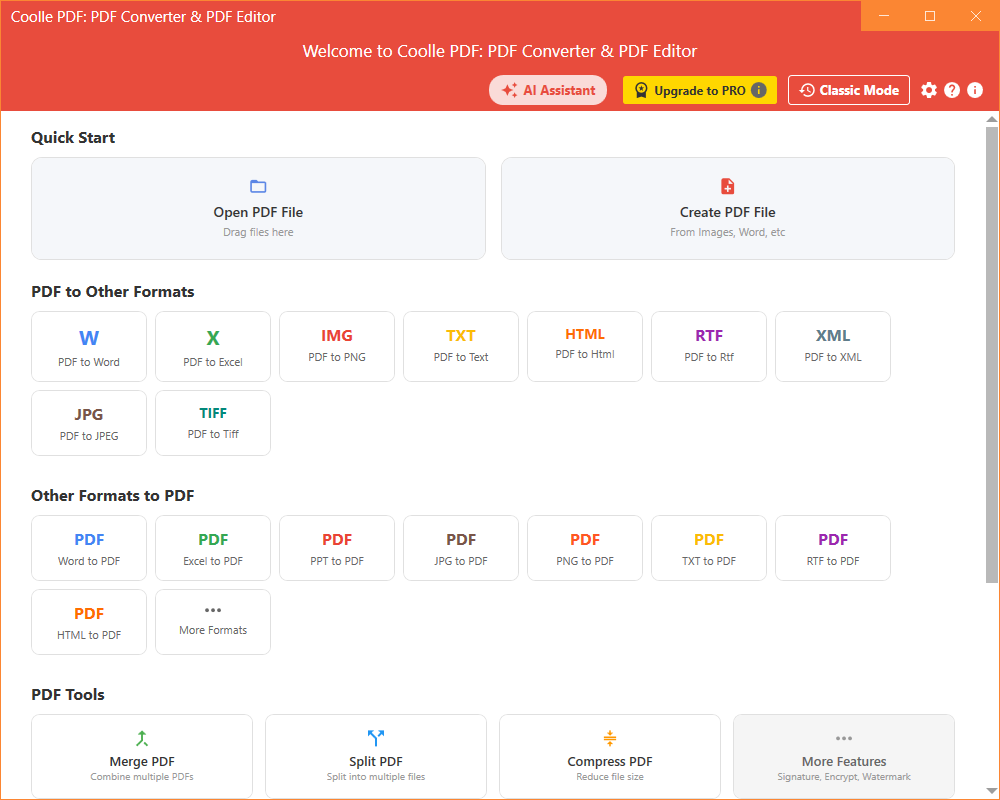
Convert PDF to Word, Excel, Images, Text and more. Create PDF from Office documents. Merge, split, compress, sign and edit PDF with AI-powered tools. Both New UI and Classic Mode included.
支持 PDF 转 Word/Excel/图片/文本,Office 文档转 PDF,合并、拆分、压缩、签名、编辑 PDF,AI 智能工具。同时提供新版界面与经典模式。
Get it from Windows Store 从微软商店获取Features Overview
功能总览
PDF to Office
PDF 转 Office
Convert PDF to Word (docx/doc), Excel (xlsx/xls), PowerPoint with page range and OCR support.
PDF 转 Word/Excel/PPT,支持页范围与 OCR 识别。
Tutorial →教程 →PDF to Images / Text
PDF 转图片/文本
Export pages to JPG, PNG, TIFF (single or multi-page), TXT, XML, HTML, RTF.
导出为 JPG/PNG/TIFF(单页或多页)、TXT、XML、HTML、RTF。
Tutorial →教程 →Create PDF
生成 PDF
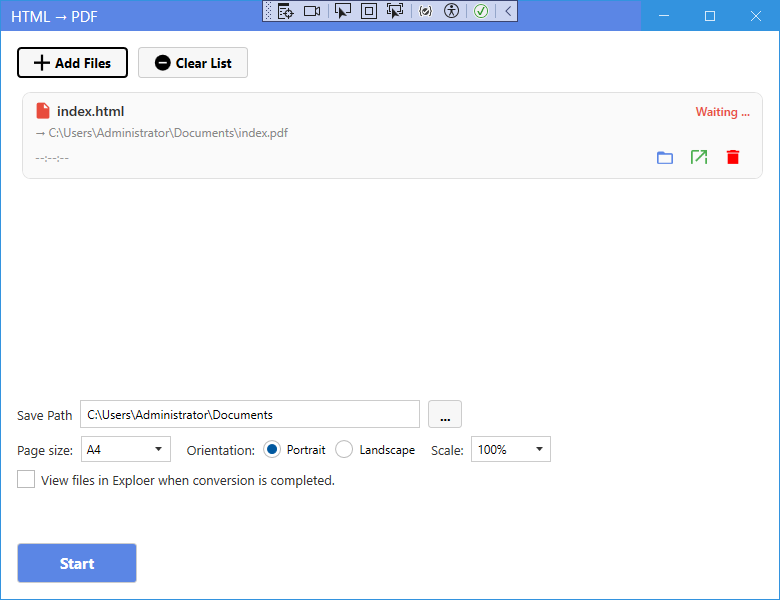
Word, Excel, PPT, Text, HTML, XML and images to PDF with layout options and grid lines.
Word/Excel/PPT/文本/HTML/XML/图片转 PDF,支持布局选项与网格线。
Tutorial →教程 →Merge / Split / Compress
合并/拆分/压缩
Combine multiple PDFs, extract pages, and reduce file size while keeping quality.
合并多个 PDF、提取页面、压缩文件大小并保持质量。
Tutorial →教程 →AI Tools
AI 工具
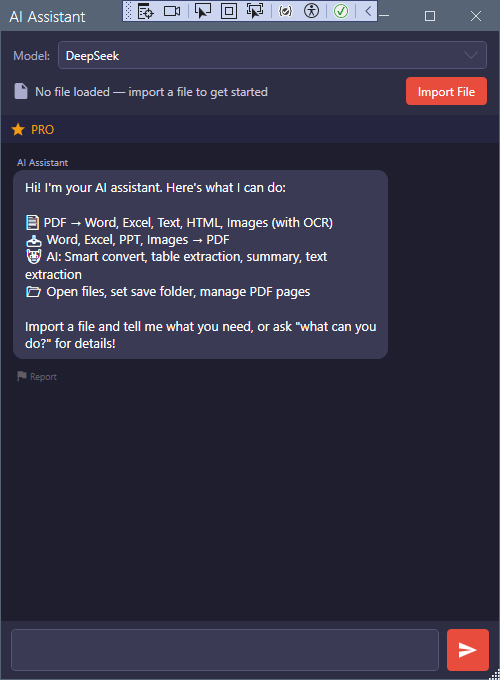
AI chat, summary, table & text extraction, image to Word/Excel, Baidu smart convert.
AI 对话、摘要、表格/文本提取、图片转 Word/Excel、百度智能转换。
Learn more →了解更多 →PDF Tools & Editor
PDF 工具与编辑器
Signature, encrypt, watermark, annotate, OCR and page management, plus PDF Editor integration.
签名、加密、水印、批注、OCR、页面管理,并集成 PDF 编辑器。
Tutorial →教程 →Screenshots
界面截图
Step-by-Step Tutorials
分步教程
1. Convert PDF to Word
1. PDF 转 Word
- On the home page, click PDF to Word in the "PDF to Other Formats" section (or in Classic Mode, click the DOCX card).
- 在主页"PDF 转其他格式"区域点击 PDF 转 Word(经典模式点击 DOCX 卡片)。
- Click Add Files and select one or more PDF files. Choose the output format (.docx / .doc), and optionally set a page range (e.g. 2-5, 1,3) and OCR for scanned PDFs.
- 点击添加文件选择 PDF,选择输出格式(.docx/.doc),可选页范围(如 2-5、1,3)以及扫描件的 OCR 识别。
- Click Start. When finished, the file appears in the list — use the folder/open buttons to locate or view the result.
- 点击开始转换。完成后可在列表使用"文件夹/打开"按钮定位或查看结果。
2. Convert PDF to Excel
2. PDF 转 Excel
- Click PDF to Excel on the home page, add PDF files, choose .xlsx or .xls, and set page range if needed.
- 点击主页PDF 转 Excel,添加 PDF,选择 .xlsx/.xls,可按需设置页范围。
- Enable OCR for scanned tables. Click Start to convert.
- 扫描表格可开启 OCR。点击开始转换。
3. Convert PDF to Images
3. PDF 转图片
- Use PDF to PNG / JPG / TIFF. For TIFF you can choose single or multi-page output. Page range is supported (e.g. 3, 2-5, 1,3,5).
- 使用PDF 转 PNG/JPG/TIFF。TIFF 可选单页或多页,支持页范围(如 3、2-5、1,3,5)。
- Images are saved into a folder named after the PDF. Click Start to export.
- 图片保存到以 PDF 命名的文件夹中。点击开始导出。
4. Convert PDF to Text / XML / HTML / RTF
4. PDF 转文本/XML/HTML/RTF
- Open PDF to Text (or XML/HTML/RTF entry), add files, enable OCR if the PDF is scanned, then start.
- 打开PDF 转文本(或 XML/HTML/RTF 入口),添加文件,扫描件开启 OCR 后开始。
5. Convert PDF to TIFF (Multi-page)
5. PDF 转 TIFF(多页)
- Choose PDF to TIFF, then select "multi-page" in the window to merge all pages into a single .tiff file.
- 选择PDF 转 TIFF,在窗口中选择"多页"可将所有页合并为单个 .tiff 文件。
6. Convert Word / RTF to PDF
6. Word/RTF 转 PDF
- Click Word to PDF, add .docx/.doc/.rtf files, then start. The result is saved as PDF.
- 点击Word 转 PDF,添加 .docx/.doc/.rtf 文件后开始,输出为 PDF。
7. Convert Excel to PDF
7. Excel 转 PDF
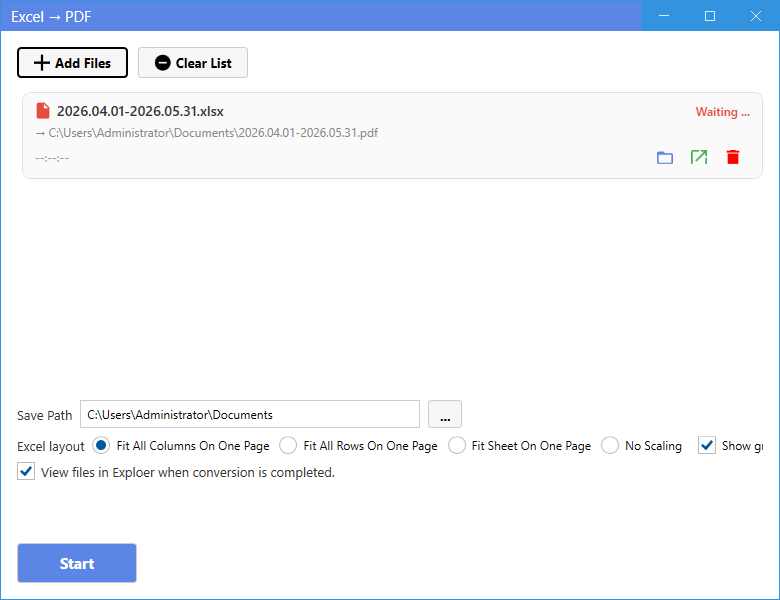
- Open Excel to PDF, add .xlsx/.xls files. Set page layout (all columns/rows/sheet on one page, no scaling), grid lines and orientation (portrait/landscape).
- 打开Excel 转 PDF,添加 .xlsx/.xls。可设置页面布局(所有列/行/整表一页、不缩放)、网格线与方向(纵向/横向)。
8. Convert PPT to PDF
8. PPT 转 PDF
- Use PPT to PDF, add .pptx/.ppt files, and start. Each slide becomes one PDF page.
- 使用PPT 转 PDF,添加 .pptx/.ppt 后开始,每页幻灯片对应一页 PDF。
9. Convert Images to PDF
9. 图片转 PDF
- Open Images to PDF, add JPG/PNG/BMP/TIFF images, check "merge into one PDF" to combine them.
- 打开图片转 PDF,添加 JPG/PNG/BMP/TIFF 图片,勾选"合并为一个 PDF"可合成单文件。
10. Merge PDF
10. 合并 PDF
- Open Merge PDF from PDF Tools, add multiple PDFs, reorder by drag, and merge into one file.
- 在 PDF 工具打开合并 PDF,添加多个 PDF,拖拽排序后合并为单个文件。
11. Split PDF
11. 拆分 PDF
- Open Split PDF, add a PDF, and split by page ranges into multiple files.
- 打开拆分 PDF,添加 PDF 后按页范围拆分为多个文件。
12. Compress PDF
12. 压缩 PDF
- Open Compress PDF, add a PDF, choose a compression level, and save the smaller file.
- 打开压缩 PDF,添加 PDF 后选择压缩级别,保存更小的文件。
13. OCR (Optical Character Recognition)
13. OCR 文字识别
- When converting a scanned/image-based PDF to Word/Excel/Text, tick Use OCR and choose the language. The text becomes editable and searchable.
- 将扫描件/图片型 PDF 转 Word/Excel/文本时,勾选使用 OCR 并选择语言,即可得到可编辑、可搜索的文本。
14. Classic Mode (Old Interface)
14. 经典模式(旧版界面)
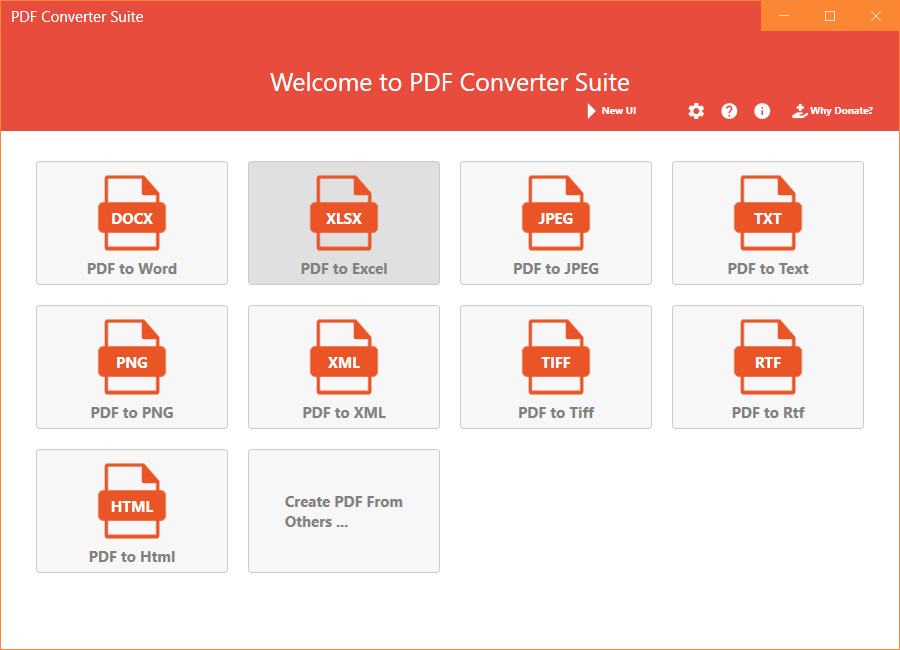
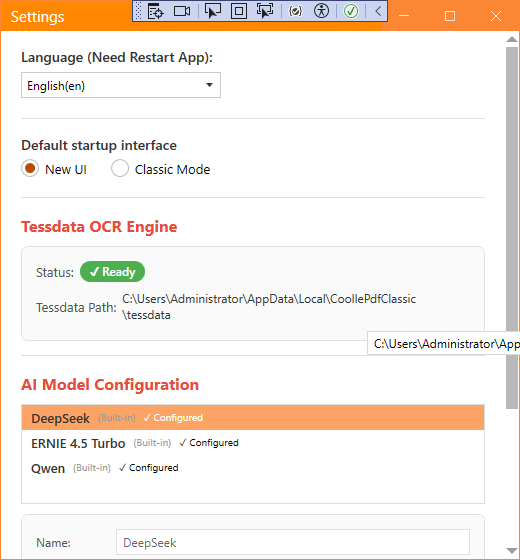
- Click the Classic Mode button in the top-right corner of the New UI to switch to the classic interface, or set it as the default startup interface in Settings.
- 点击新版界面右上角经典模式按钮切换到旧版界面,也可在设置中将经典模式设为默认启动界面。
- The classic interface keeps the familiar cards: PDF to Word/Excel/Images/Text/TIFF, Word/Excel/PPT/Images to PDF, and batch conversion.
- 经典界面保留熟悉的卡片:PDF 转 Word/Excel/图片/文本/TIFF,Word/Excel/PPT/图片 转 PDF,以及批量转换。