Move between folders
1. Double-click a folder in the file list to open it.
2. Use the Back, Forward, and Up buttons in the toolbar (or Alt+Left / Alt+Right, and Alt+Up) to navigate history.
3. Click a path segment in the address bar to jump straight to a parent folder, or type a path and press Enter.
Tip: Press Ctrl+L (or Alt+D) to focus the address bar and type a path directly.
Browse drives
Open any local disk from the sidebar's Drives section, or press the drive shortcut. Each drive shows its capacity and free space.
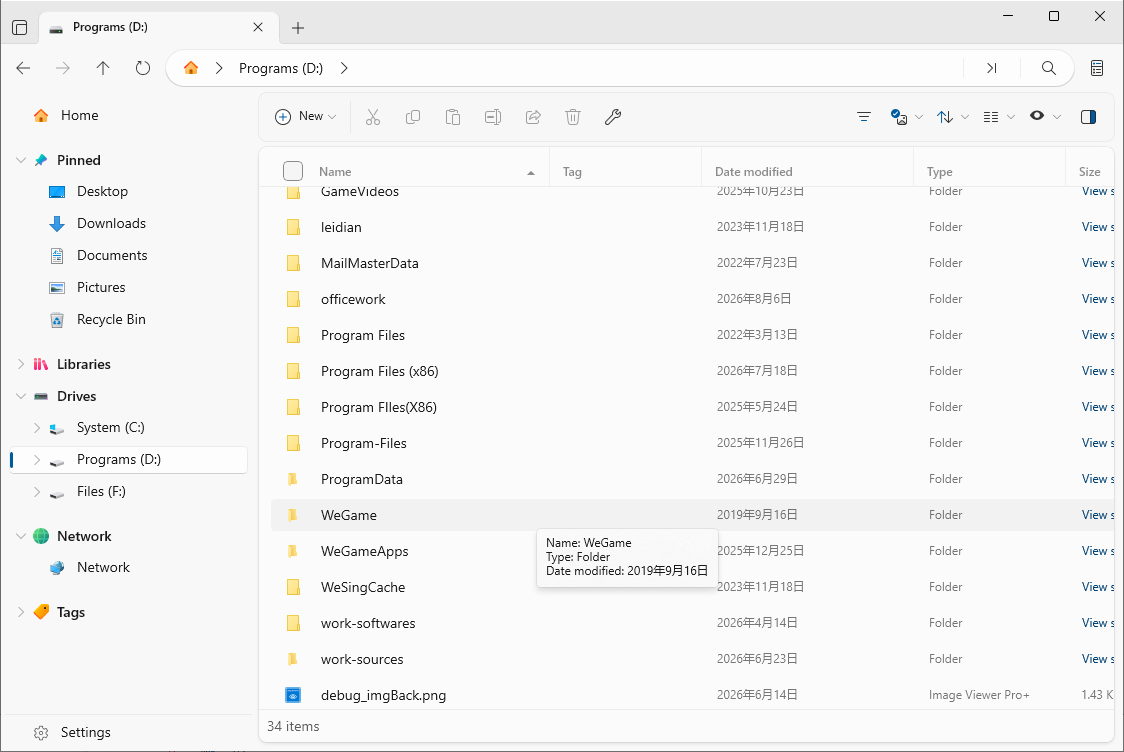
1. In the sidebar, expand Drives.
2. Click a drive (for example D:) to open its root folder.
3. Use the address bar and navigation buttons to move around, or press Ctrl+L to type a path.
Use libraries & the sidebar
The sidebar groups your main locations so you can switch instantly:
- Pinned — folders you have pinned for one-click access.
- Libraries — Windows Libraries (Documents, Pictures, Music, Videos, Downloads).
- Drives — all local disks.
- Cloud Drives, Network, and WSL — other sources.
- File Tags — click a tag to see all files carrying it.
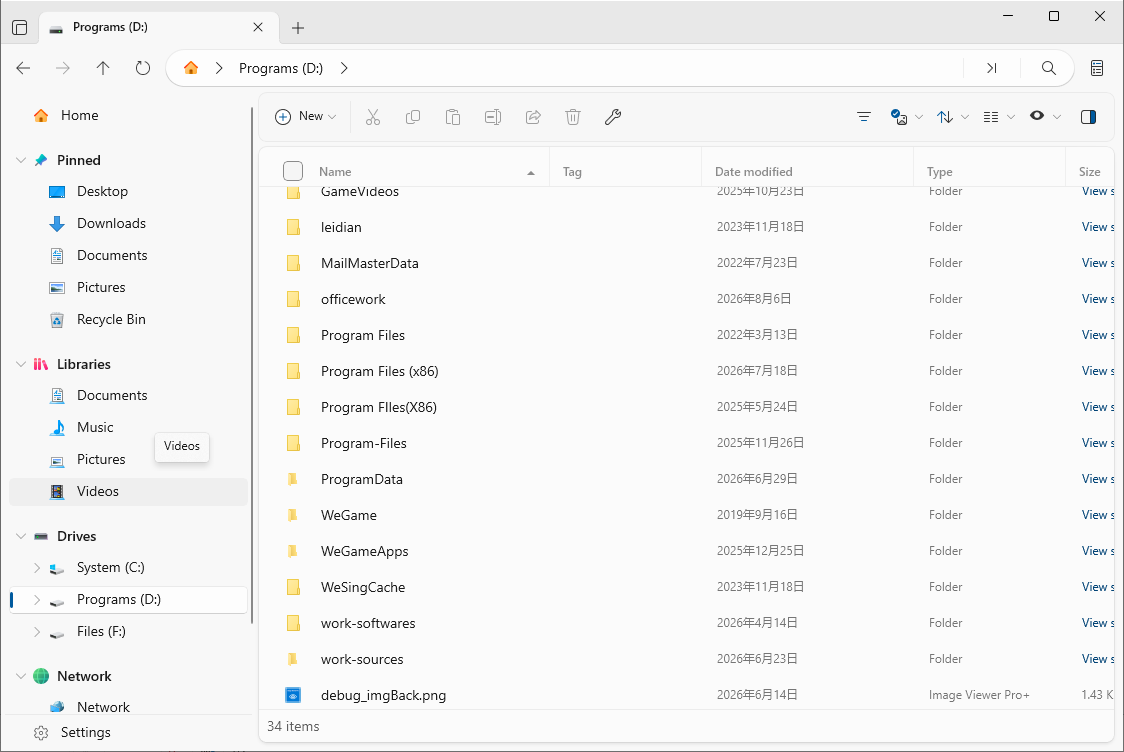
1. Right-click any folder and choose Pin to sidebar to keep it handy.
2. Reorder pinned items via the sidebar reorder dialog to keep favourites on top.
Tip: Toggle the sidebar on and off anytime with Ctrl+B.
Use tabs like a browser
- Press Ctrl+T to open a new tab, or double-click an empty spot on the tab bar.
- Press Ctrl+Tab to switch to the next tab, Ctrl+Shift+Tab for the previous one.
- Duplicate a tab with Ctrl+Shift+K, close it with Ctrl+W, or close all other tabs.
- Accidentally closed a tab? Use Reopen closed tab (Ctrl+Shift+T).
Tip: Right-click a tab for more options, including moving it to a new window.
Split panes & multiple windows
Compare or move files between two folders side by side:
1. Use Split pane (vertically Alt+Shift+V or horizontally Alt+Shift+H) to show two panes.
2. Open any folder in the second pane with Open in other pane.
3. Drag files between the two panes to copy or move them instantly.
You can also open folders in a brand-new window (Ctrl+N), or switch to dual-pane mode with Ctrl+Shift+S.