Switch themes
Choose the look that is easiest on your eyes:
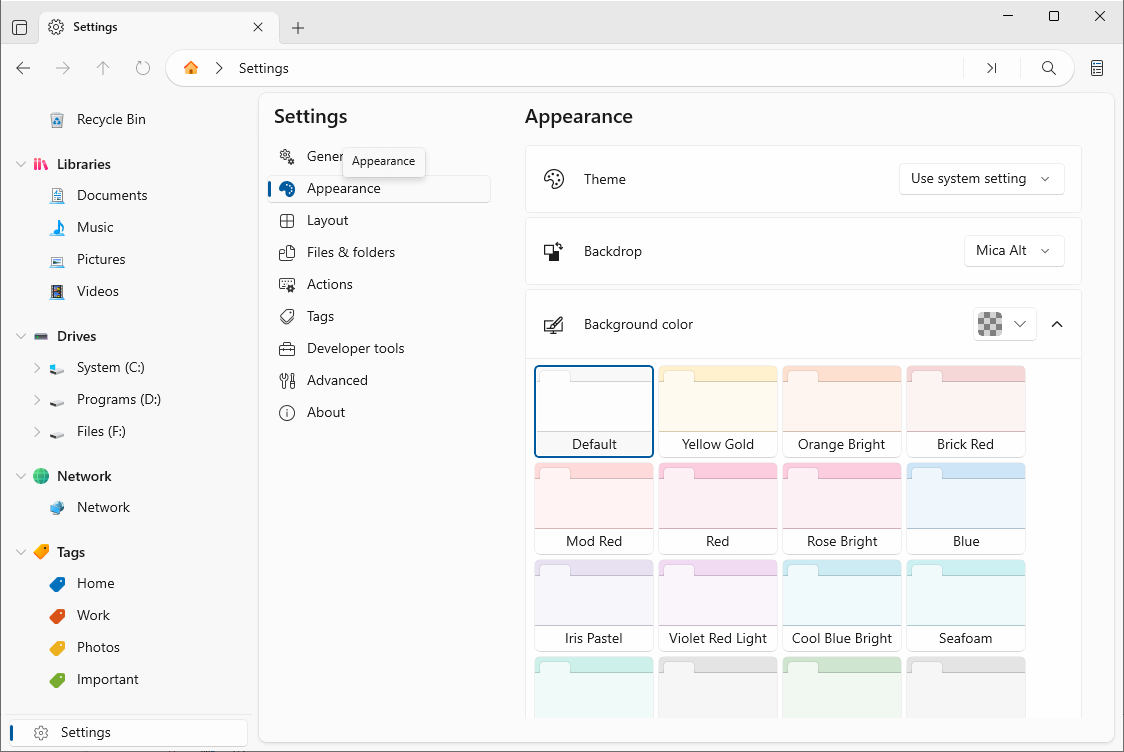
1. Open Settings → Appearance.
2. Pick System, Light, or Dark from the Theme menu.
3. The whole app updates instantly.
Tip: Press Ctrl+Alt+T to toggle between light and dark quickly.
Backdrop material & color
- Backdrop — choose Solid, Acrylic, Thin Acrylic, Mica, or Mica Alt for a frosted-glass effect behind the window.
- Theme color — pick one of the preset accent colors (Default, Yellow Gold, Orange Bright, Blue, Rose, Seafoam, and more) or a custom color.
Tip: Acrylic and Mica backdrops look best on Windows 11 and can add depth to the app window.
Font & background image
- Font family — change the font used throughout the app.
- Background image — set an image behind the interface, and control its fit (None, Fill, Uniform, Uniform To Fill), alignment, and opacity.
Show or hide parts of the window
Control what you see on screen:
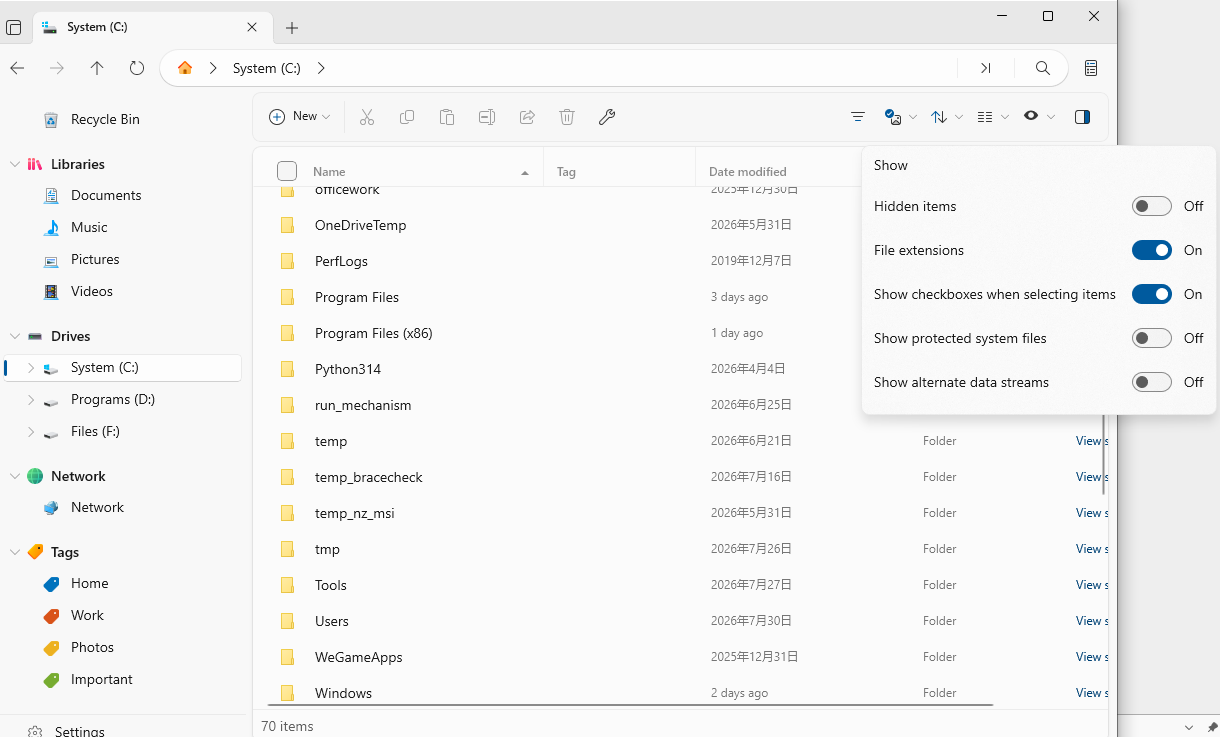
- Toggle Show toolbar, Show status bar, tab actions, and the shelf-pane toggle button.
- Toggle the sidebar, preview pane, and info pane from the Show menu (sidebar Ctrl+B, toolbar Ctrl+Shift+B).
- Set when the Status Center appears — always, or only during ongoing file operations.
Tip: A clean window with only the controls you need makes daily work faster.