
用一句话描述你要的改名效果——例如「把文件名改成『报告_序号』,保留原扩展名」——AI 生成完整方案,点「允许」后才写入预览。 查看 AI 教程 →
Describe the rename you want in one sentence — e.g. "rename to 报告_序号 and keep the extension" — and AI drafts the whole plan; nothing is applied until you press Allow. See the AI tutorial →
快速入门Quick Start
- 启动应用,点击「📁 导入文件」或直接拖拽文件到窗口Launch the app and click "📁 Import Files" or drag files into the window
- 在左侧规则面板配置规则(前缀/后缀/替换/正则等),右侧列表实时预览Configure rules in the left panel (prefix/suffix/replace/regex); the right list previews in real time
- 确认无冲突后,点击底部「▶ 执行重命名」Verify no conflicts, then click "▶ Execute Rename"
- 如需恢复,点击工具栏「↩ 撤销」一键还原所有原名To restore, click "↩ Undo" on the toolbar to revert all names
基础规则
Basic Rules
前缀、后缀、替换、序号、大小写
Prefix, suffix, replace, sequence, case
正则表达式
Regex
高级匹配替换,支持分组捕获
Advanced match & replace with group capture
实时预览
Live Preview
输入即见效果,冲突即时标红
See results as you type; conflicts highlighted
一键撤销
One-click Undo
自动保存映射,随时恢复原名
Mapping auto-saved; restore anytime
模板复用
Templates
保存常用规则组合,一键加载
Save rule sets and reload instantly
多语言
Multilingual
7 种界面语言,自动检测系统
7 UI languages, auto system detection
界面概览Interface Overview
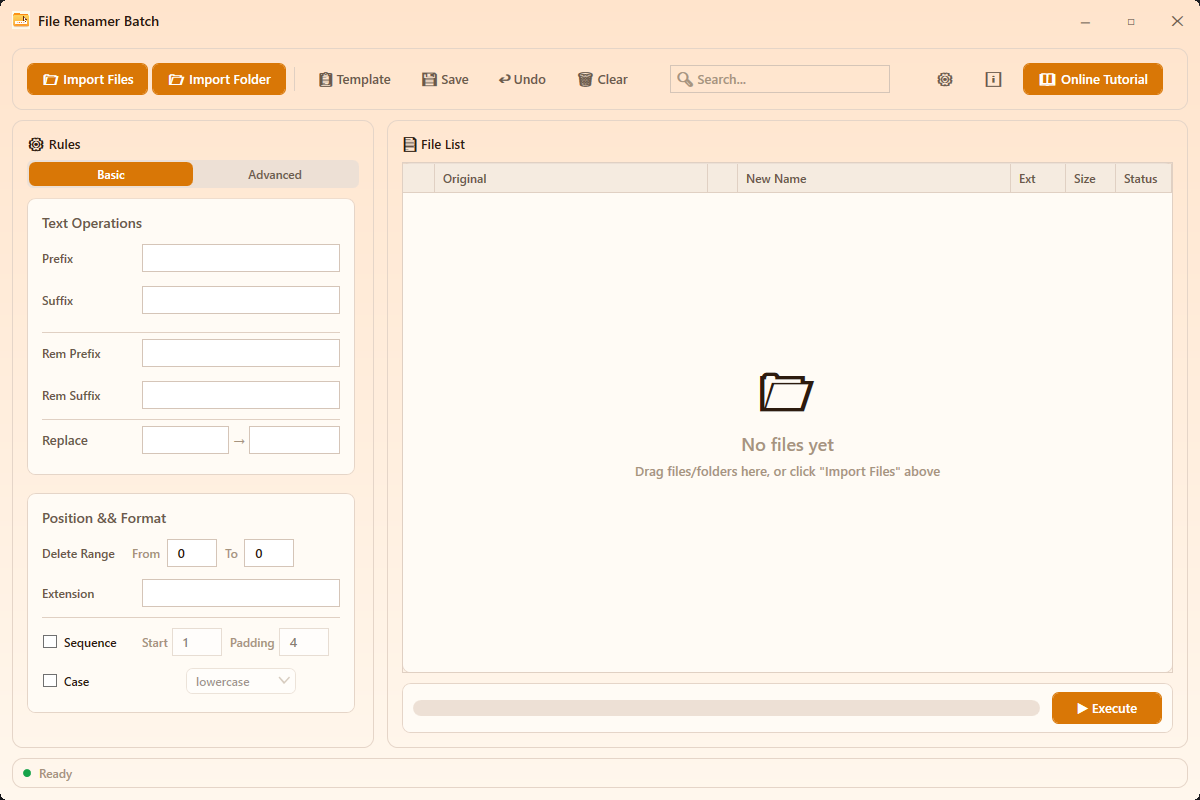
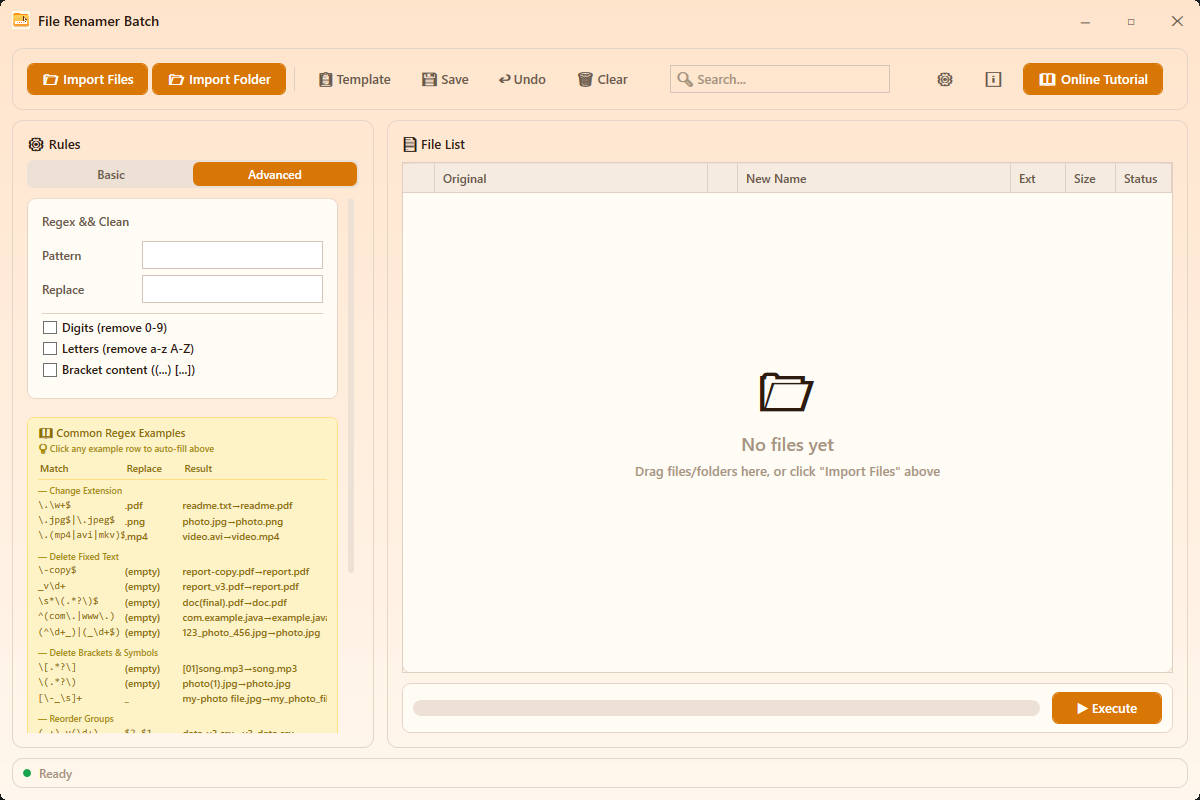
- 左侧规则面板Left Rules Panel — 配置改名规则,「普通」与「高级」两个标签页Configure rules; Basic and Advanced tabs
- 右侧文件列表Right File List — 原文件名 → 新文件名预览,状态图标标识就绪/冲突/非法字符Original → new name preview; status icons show ready/conflict/invalid
- 顶部工具栏Top Toolbar — 导入文件、导入文件夹、模板、保存、撤销、清空、搜索、AI 重命名、设置、关于、在线教程Import files/folder, template, save, undo, clear, search, AI Rename, settings, about, online tutorial
- AI 悬浮球AI Floating Ball — 窗口内可拖动的圆形入口,与工具栏「🤖 AI 重命名」等效;可在设置里关闭A draggable round entry inside the window, same as the toolbar "AI Rename"; can be hidden in Settings
- 底部操作栏Bottom Bar — 执行重命名按钮 + 实时进度条Execute button + progress bar
如何批量修改文件扩展名?How to batch change the file extension?
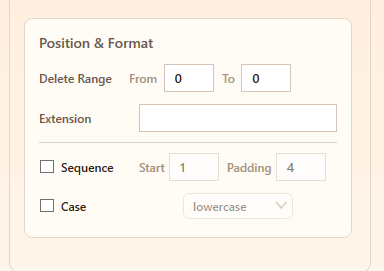
- 导入文件后,在「普通」标签页的「位置与格式」分组中找到「改后缀」输入框
- Import files, then find the "Extension" box in the "Position & Format" group on the Basic tab
- 输入新扩展名(可带点也可不带点,如
.pdf或pdf;留空保持不变) - Type the new extension with or without the dot, e.g.
.pdforpdf(leave empty to keep) - 右侧列表实时预览,确认无误后执行重命名
- The list previews in real time; execute when it looks right
| 匹配 | Match | 替换 | Replace | 效果 | Result |
|---|---|---|---|---|---|
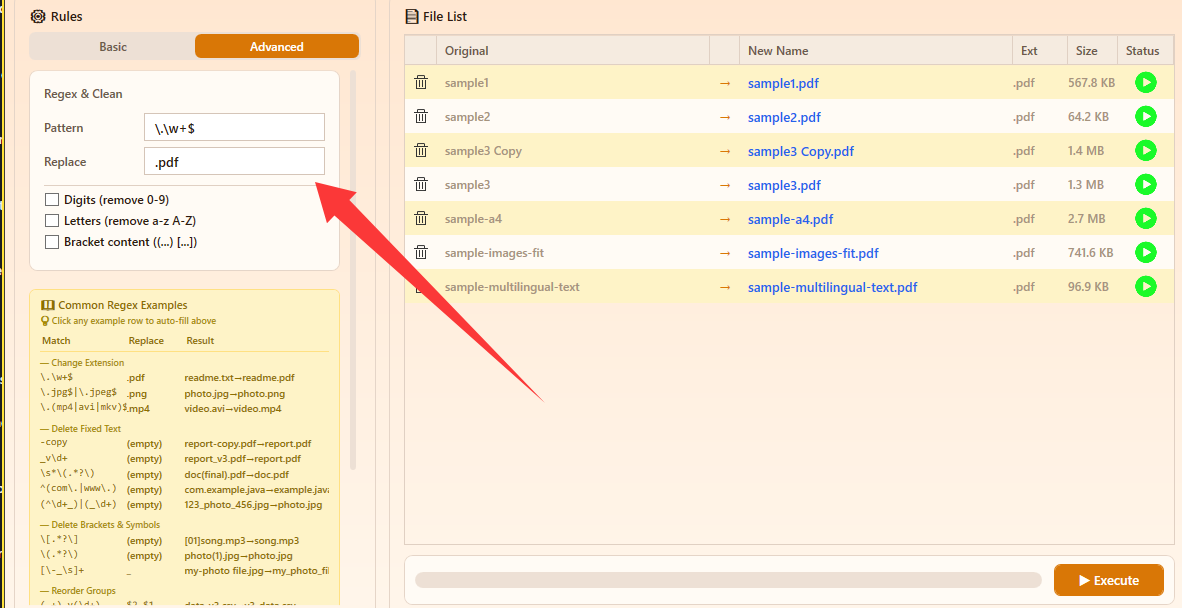
\.\w+$ | .pdf | readme.txt → readme.pdf | |||
\.jpg$|\.jpeg$ | .png | photo.jpg → photo.png |
如何删除固定文字?How to delete fixed text?
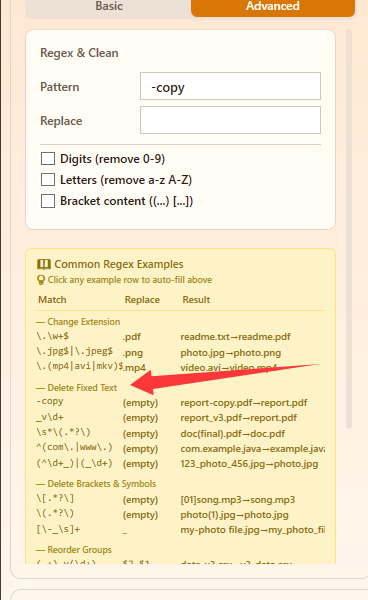
在「文本操作」分组中,「删前缀」输入框删除文件名开头的文字,「删后缀」输入框删除结尾的文字。规则作用于文件名主体(不含扩展名),不区分大小写。
In the "Text Operations" group, "Rem Prefix" strips text from the start of names and "Rem Suffix" strips it from the end. These rules apply to the name only (not the extension) and are case-insensitive.
| 匹配 | Match | 替换 | Replace | 效果 | Result |
|---|---|---|---|---|---|
-copy | (留空) | (empty) | report-copy.pdf → report.pdf | ||
_v\d+ | (留空) | (empty) | report_v3.pdf → report.pdf | ||
\[.*?\] | (留空) | (empty) | [01]song.mp3 → song.mp3 |
如何添加前缀或后缀?How to add prefix or suffix?
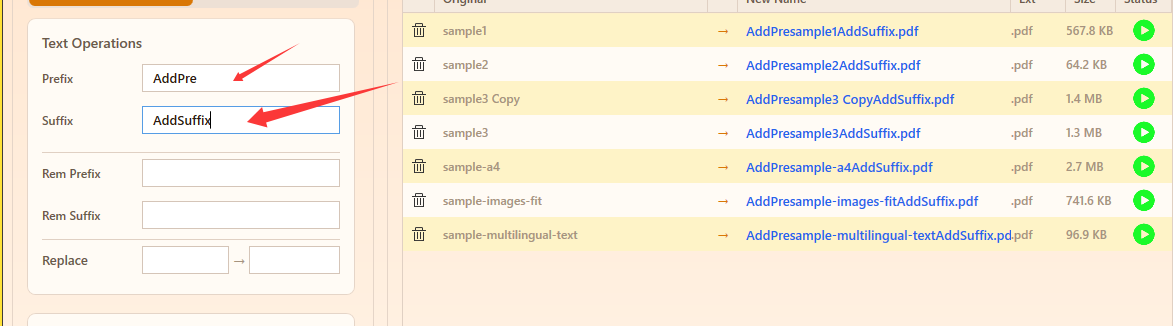
- 在「文本操作」分组的「前缀」输入框填写要加到开头的文字
- Type text into "Prefix" (Text Operations group) to prepend it
- 在「后缀」输入框填写要加到结尾(扩展名之前)的文字
- Type text into "Suffix" to append it before the extension
- 右侧列表实时预览新文件名
- Watch the live preview on the right
如何添加序号?How to add sequence numbers?
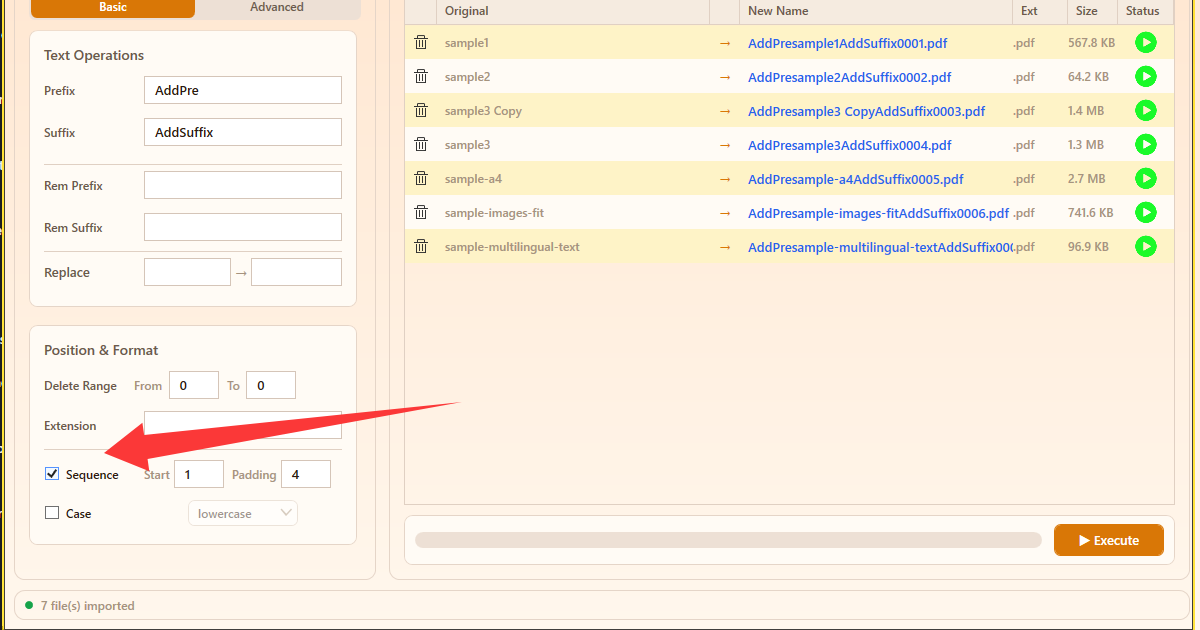
- 勾选「序号」(Sequence) 复选框启用
- Check the "Sequence" checkbox to enable it
- 「起始」(Start) 默认 1,「补零」(Padding) 默认 4 位(如 0001)
- "Start" defaults to 1 and "Padding" to 4 (e.g. 0001)
- 序号自动加在文件名末尾(扩展名之前),无需选择位置
- Numbers are appended at the end of the name (before the extension) — no position choice needed
如何转换大小写?How to change letter case?
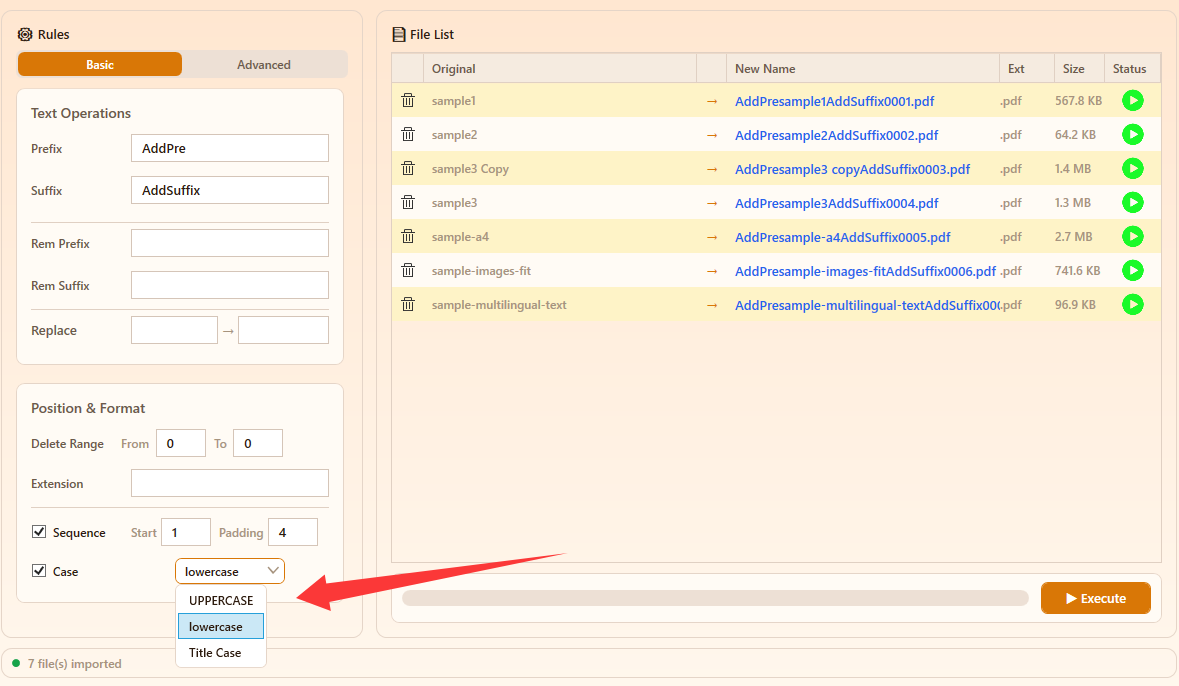
- 勾选「大小写」(Case) 复选框
- Check the "Case" checkbox
- 在下拉框选择转换方式:全大写、全小写或首字母大写
- Pick a mode from the dropdown: UPPERCASE, lowercase, or Title Case
如何查找替换文本?How to find and replace text?
- 在「文本操作」分组的「替换」行,第一个输入框输入要查找的文字
- In the "Replace" row of "Text Operations", type the text to find in the first box
- 在「→」后面的输入框输入替换内容(留空则删除)
- Type the replacement after the "→" (empty = delete)
- 所有匹配项会全部替换,列表实时预览
- Every match is replaced; the list previews live
如何使用正则表达式?How to use regex?
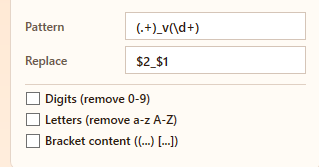
切换到「高级」标签页,在「正则与清理」分组中:在「正则」(Pattern) 框输入匹配模式,「替换」(Replace) 框输入替换文本(用 $1 $2 引用分组)。正则作用于完整文件名(含扩展名)。
Switch to the Advanced tab; in the "Regex & Clean" group, enter a pattern in the "Pattern" box and replacement in the "Replace" box (use $1 $2 for groups). Regex works on the full filename including extension.
| Symbol | 含义 | Meaning |
|---|---|---|
. | 任意单个字符 | Any character |
\d | 数字 0-9 | Digit 0-9 |
\w | 字母数字下划线 | Word char |
+ | 一次或多次 | One or more |
* | 零次或多次 | Zero or more |
^ | 字符串开头 | Start of string |
$ | 字符串结尾 | End of string |
| | 或 | OR |
( ) | 分组,可用 $1 $2 引用 | Group, reference with $1 $2 |
\ | 转义特殊字符 | Escape special chars |
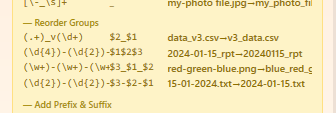
. \ $ ^ ( ) [ ] { } + * ? | 都有特殊含义,匹配字面值需加 \ 转义。Escape . \ $ ^ ( ) [ ] { } + * ? | with \ to match literally.| 匹配 | Match | 替换 | Replace | 效果 | Result |
|---|---|---|---|---|---|
(.+)_v(\d+) | $2_$1 | data_v3.csv → v3_data.csv | |||
(\d{4})-(\d{2})-(\d{2}) | $1$2$3 | 2024-01-15_rpt → 20240115_rpt | |||
(.+)_(\d+) | $2_$1 | backup_2024.txt → 2024_backup.txt |
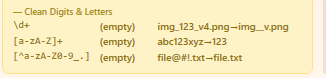
| 匹配 | Match | 替换 | Replace | 效果 | Result |
|---|---|---|---|---|---|
\d+ | (留空) | (empty) | img_123_v4.png → img__v.png | ||
[^a-zA-Z0-9_.] | (留空) | (empty) | file@#!.txt → file.txt | ||
[\-_\s]+ | _ | my-photo file.jpg → my_photo_file.jpg |
如何导入文件?How to import files?
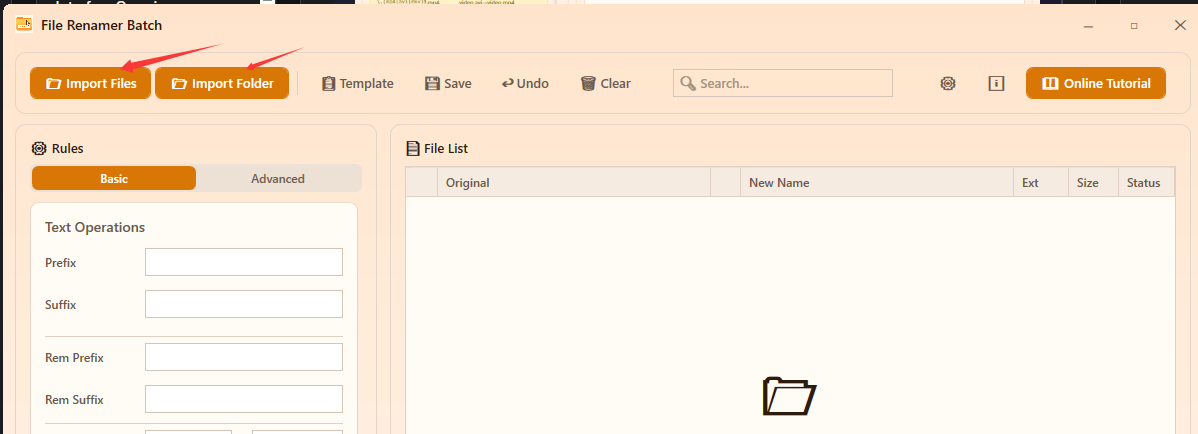
- 方式一:点击「📁 导入文件」,多选文件
- Method 1: click "📁 Import Files" and multi-select files
- 方式二:点击「📂 导入文件夹」,递归添加整个目录
- Method 2: click "📂 Import Folder" to add a whole directory recursively
- 方式三:直接拖拽文件/文件夹到窗口
- Method 3: drag files/folders into the window
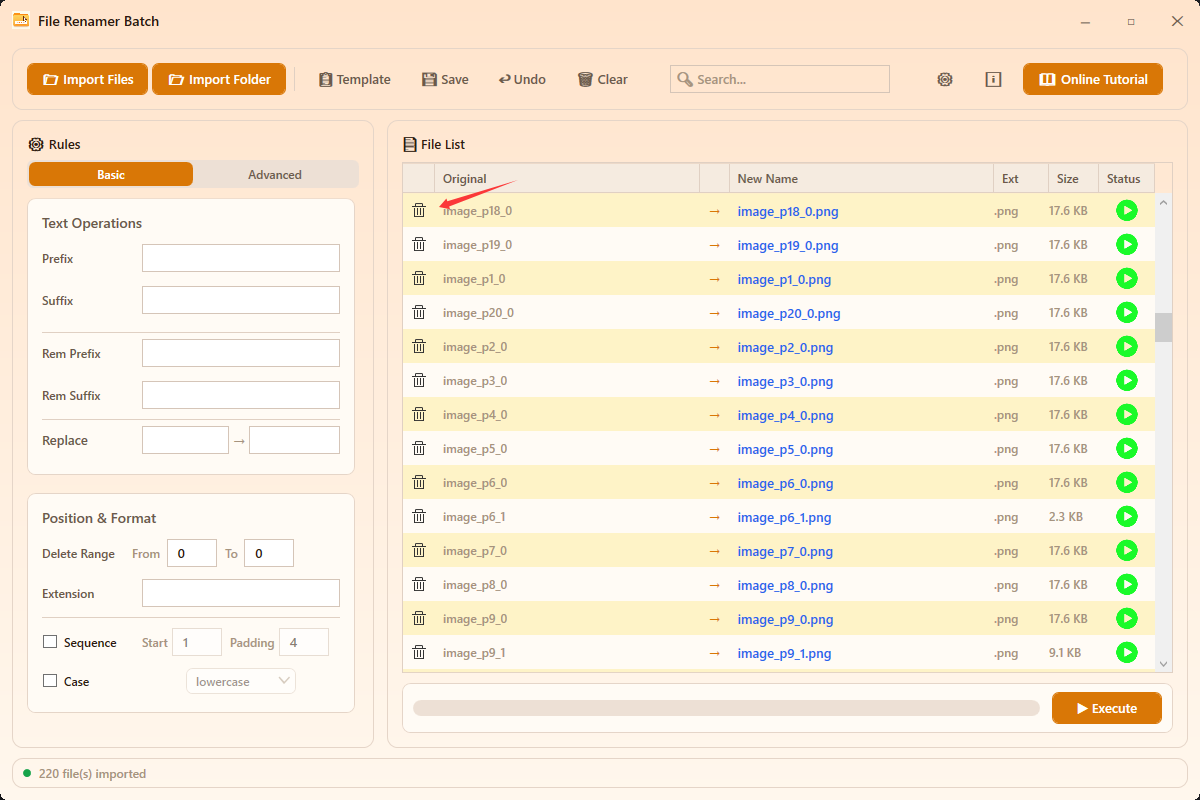
- 每行左侧 🗑 按钮可单独移除文件
- Use the 🗑 button on each row to remove files
如何执行与撤销重命名?How to execute and undo a rename?
- 确认右侧列表状态均为「就绪」(无红/黄标记)
- Verify all rows show "Ready" (no red/yellow marks)
- 点击底部「▶ 执行重命名」按钮
- Click the "▶ Execute Rename" button
- 进度条显示执行进度,完成后弹出结果窗口(成功/失败统计)
- Progress bar shows progress; a result window appears when done
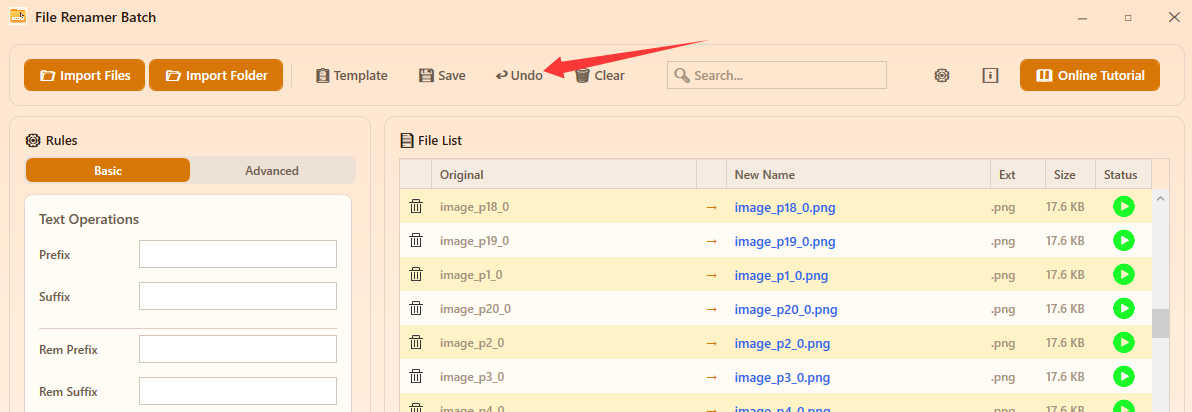
- 如需恢复,点击工具栏「↩ 撤销」一键还原
- Click "↩ Undo" to restore all names
如何保存和加载模板?How to save and load templates?
- 配置好一组常用规则
- Configure a set of frequently used rules
- 点击工具栏「💾 保存」,在文件夹对话框中选择保存位置(默认模板目录,直接确认即可),自动生成「模板_日期时间.json」文件
- Click "💾 Save", pick a folder in the dialog (the default template folder works as-is), and a "模板_日期时间.json" file is created automatically
- 下次点击「📋 模板」,在文件对话框中选择 .json 模板,规则自动载入并预览
- Next time click "📋 Template", pick a .json template in the file dialog, and the rules are applied and previewed
如何切换主题和语言?How to switch theme and language?
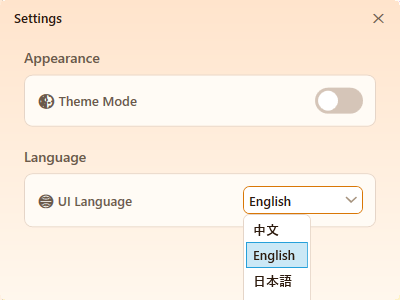
- 点击工具栏 ⚙️ 打开设置
- Click the ⚙️ toolbar button
- 「外观」区切换浅色/深色主题
- Toggle light/dark in "Appearance"
- 「语言」下拉框选择 7 种语言之一
- Pick one of 7 languages
- 首次启动自动检测系统语言
- System language auto-detected on first launch
如何使用 AI 重命名?How to use AI Rename?
用一句自然语言描述你要的效果,AI 给出完整改名方案,你点「允许」后才会写进预览。规则化的批量重命名完全在本机完成,与 AI 功能互不影响。
Describe the result you want in one natural sentence, AI drafts the whole plan, and nothing reaches the preview until you press Allow. Rule-based batch renaming runs entirely on your PC and is independent of the AI feature.
- 打开入口:点顶部工具栏「🤖 AI 重命名」,或点窗口里的 AI 悬浮球(两者等效)
- Open it: click "🤖 AI Rename" on the toolbar, or the AI floating ball inside the window (both do the same)
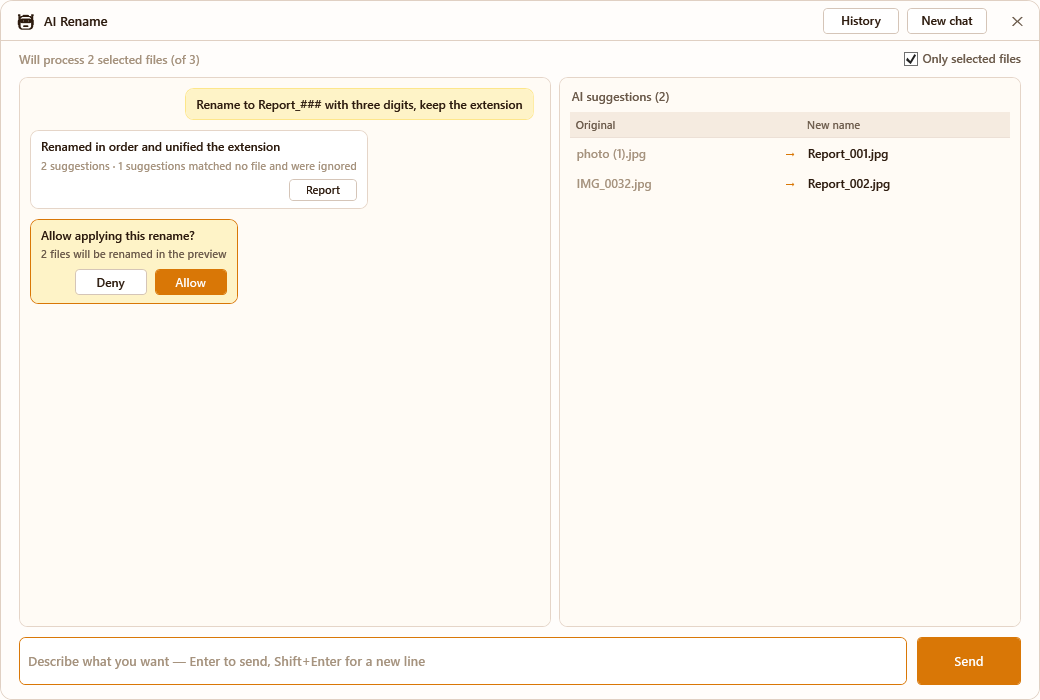
- 描述需求:在对话框底部输入一句话,例如「把文件名改成『报告_序号』,保留原扩展名」,Enter 发送,Shift+Enter 换行
- Describe it: type one sentence at the bottom of the dialog, e.g. "rename to 报告_序号 and keep the extension", press Enter to send, Shift+Enter for a new line
- 看建议 → 审批:右侧出现建议列表,对话里出现「是否允许应用这次重命名?」卡片;点允许才写进主窗口预览,点拒绝则丢弃
- Review → approve: suggestions appear on the right and an "Apply this rename?" card in the chat; press Allow to write them into the preview, or Deny to discard
- 可以多轮追问:例如再说「序号补到三位」「只改图片」「全部转小写」,AI 会结合上下文重新出方案,旧的审批卡自动作废
- Keep refining: follow up with "pad numbers to three digits", "only images" or "lowercase everything"; AI re-plans with the conversation as context and older approval cards expire
- 最后执行:回到主窗口点底部「执行重命名」才真正改文件——AI 只负责改预览,不会直接动文件
- Then execute: go back and press "Rename" at the bottom — AI only edits the preview, it never touches your files directly
不会上传文件内容。使用 AI 时只会发送:你输入的指令、这次对话最近几条消息、以及每个文件的名称与扩展名(不发送文件大小、时间等元数据,默认也不发送完整路径)。服务器只做转发、不保存这些内容。
File contents are never uploaded. AI Rename sends only your instruction, the last few messages of the conversation, and each file's name and extension (no size or timestamp metadata, and no full path unless you enable it). The server only relays the request and does not store it.
文件名本身可能带敏感信息(客户名、项目名等),介意的话请先把文件改成中性名称,或改用规则重命名。完整说明见 隐私政策。
File names themselves can be sensitive (client or project names). If that matters to you, rename the files to neutral names first, or use rule-based renaming. Full details in the privacy policy.
- 结果不对:直接接着说「第二行改成 xxx」这类修正;或点每条 AI 回复下方的「反馈」,把这段对话发给我们复现
- Wrong result: just reply with a correction such as "change row 2 to xxx"; or press "Report" under any AI reply to send us that conversation
- 提示连接失败:检查网络或稍后重试;调用上限为每小时 120 次,超出后等一小时再来
- "Cannot connect": check your network or retry later; the limit is 120 calls per hour, so wait an hour if you hit it
- 还没有文件:先在主窗口导入文件,再回来提问(AI 入口随时可点,但需要文件才能出方案)
- "No files yet": import files in the main window first — the AI entry is always clickable, but it needs files to plan a rename
- 隐藏悬浮球:设置 →「AI 服务」→ 取消勾选「显示悬浮球入口」;工具栏按钮保留,随时能再打开
- Hide the floating ball: Settings → AI → clear "Show floating ball entry"; the toolbar button stays
- 清空对话:对话框右上角「新对话」开一个新会话,旧会话在「历史会话」里,可逐条删除
- Clear chats: "New chat" in the top-right starts a fresh session; older ones live under "History" and can be deleted one by one
- 本地数据:对话记录只存在本机
%APPDATA%\FileRename\,删除即清空 - Local data: conversations live only in
%APPDATA%\FileRename\on your PC — delete the folder to wipe them
使用技巧Tips
- 点击示例自动填充——正则示例行可点击,快速应用常用模式
- Click examples to auto-fill — click regex examples to apply patterns instantly
- 搜索筛选——工具栏搜索框输入关键词实时筛选文件
- Search filter — type in the toolbar search box to filter files
- 手动编辑——双击「新文件名」列可直接修改单个文件
- Manual edit — double-click the New Name column to edit individual files
- 模板优先——重复性任务先存模板,节省时间
- Use templates — save templates for repetitive tasks
- AI 只改预览——AI 建议需点「允许」才进预览,真正落盘仍由主窗口「执行重命名」控制,随时可反悔
- AI only edits the preview — suggestions need Allow to reach the preview, and the actual rename still goes through "Rename" in the main window
- 一句话说清目标——「把姓名_日期倒过来,扩展名统一小写」这类描述一次到位,比一句句试快得多
- Say the goal in one sentence — "swap name and date, lowercase the extension" gets there faster than trial and error
常见问题FAQ
红色 = 重名冲突,黄色 = 非法字符。调整规则消除后即可执行。
Red = conflict, Yellow = invalid chars. Adjust rules to resolve.
可以。点击「↩ 撤销」一键恢复全部原名,映射自动保存。
Yes. Click "↩ Undo" to restore all names; mappings are auto-saved.
所有类型,包括无后缀文件。
All types, including files without extensions.
规则重命名完全本地运行,不联网、不上传、不统计。可选的 AI 重命名会把你的指令与文件名发到我们的服务器(不含文件内容,服务器不留存)。详见 隐私政策。
Rule-based renaming runs fully offline with no uploads and no telemetry. The optional AI Rename sends your instruction and file names to our server (never file contents, and the server does not retain them). See the privacy policy.
可以。所有规则(前缀后缀、序号、替换、大小写、扩展名、日期、正则)与模板功能都不需要账号、不需要联网、也没有文件数量限制。
Yes. Every rule (prefix/suffix, numbering, replace, case, extension, date, regex) and templates work without an account, without internet, and with no cap on file count.