启动与首次使用Launch & first use
首次启动应用时,系统会自动在浏览器中打开本教程页面,帮助你快速了解如何将 DVD 或 Blu-ray 光盘转换为 MP4、MKV 或 WebM。 On the very first launch, the app automatically opens this tutorial in your browser to help you learn how to rip DVD or Blu-ray discs to MP4, MKV, or WebM.
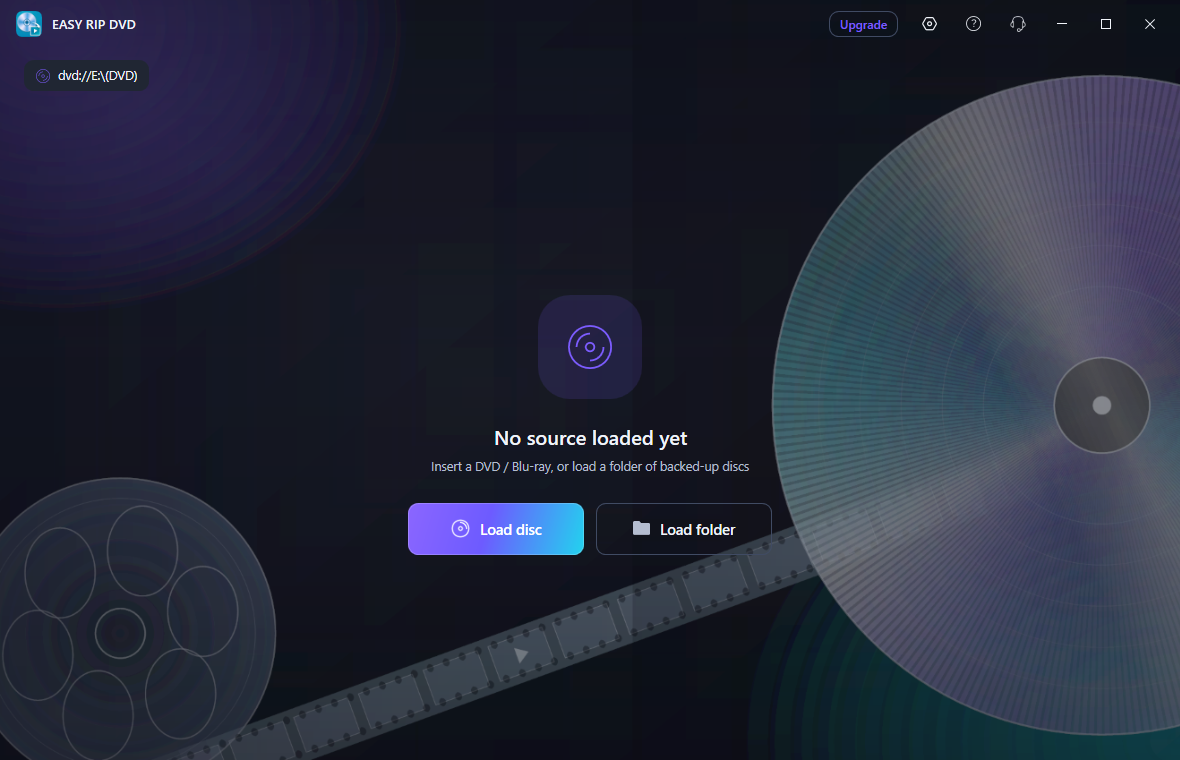
加载 DVD / Blu-rayLoad DVD / Blu-ray
EASY RIP DVD 同时支持 DVD 和 Blu-ray 两种实体光盘,也支持已复制到硬盘的 DVD / Blu-ray 文件夹(VIDEO_TS 或 BDMV 目录)。在主界面顶部工具栏点击: EASY RIP DVD supports both DVD and Blu-ray physical discs, as well as DVD / Blu-ray folders copied to your hard drive (VIDEO_TS or BDMV directories). In the top toolbar, click:
- Load disc(光盘图标):自动检测并加载光驱中的 DVD / Blu-ray。Load disc (disc icon): automatically detect and load the DVD / Blu-ray in your optical drive.
- Load folder(文件夹图标):手动选择一个包含 DVD 结构的文件夹。Load folder (folder icon): manually select a folder containing the DVD structure.
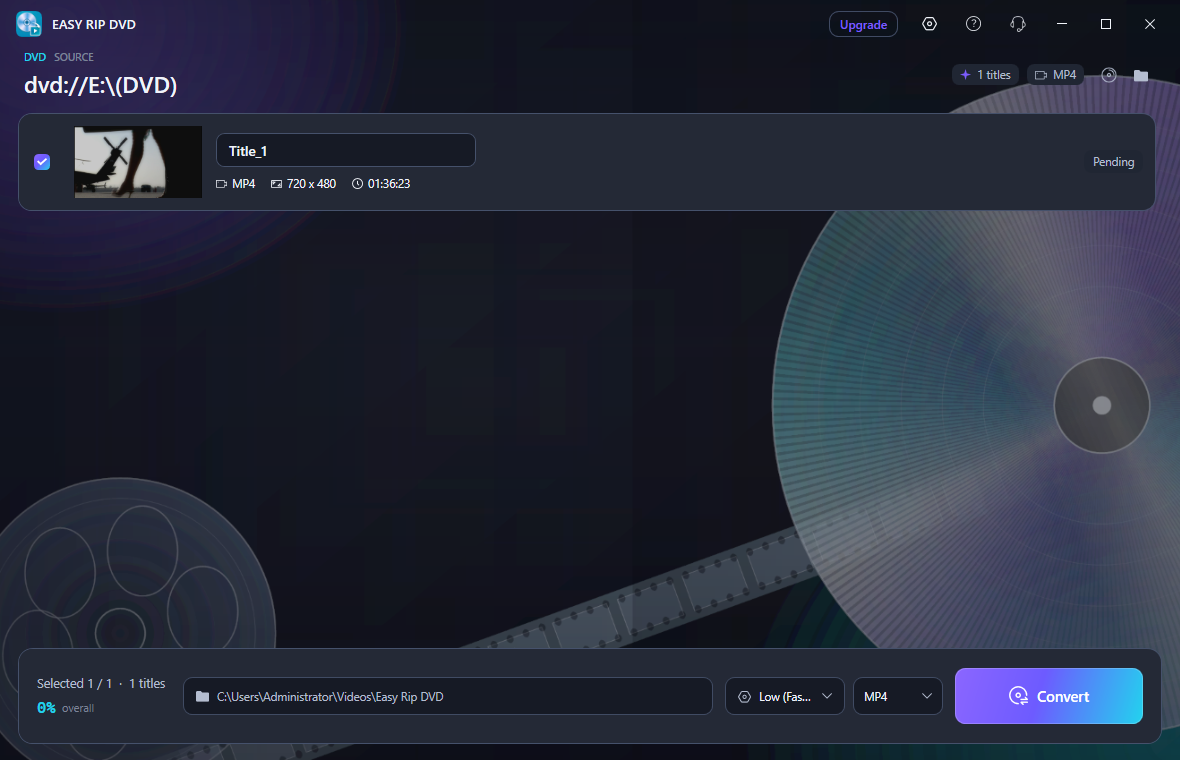
扫描与选择标题Scan & select titles
加载来源后,应用会自动扫描光盘标题,解析每个标题的时长、分辨率、格式等信息。扫描完成后,主界面会列出所有可用标题(如 Title_1、Title_2)。 After a source is loaded, the app automatically scans disc titles to parse duration, resolution, format, and other info. Once scanning finishes, all available titles (e.g. Title_1, Title_2) are listed.
- 勾选标题左侧的复选框,选择要转换的标题。Check the box on the left of each title you want to convert.
- 点击标题名称可修改输出文件名。Click the title name to edit the output file name.
- 底部状态栏会显示已选标题数量。The bottom status bar shows the number of selected titles.
设置输出格式与预设Set output format & preset
在底部面板可以设置: Use the bottom panel to set:
- 输出目录:点击路径按钮选择保存位置,默认在
Videos\Easy Rip DVD。Output directory: click the path button to choose a save location. Default isVideos\Easy Rip DVD. - 输出格式:在
MP4、MKV、WebM之间切换。Output format: switch betweenMP4,MKV, andWebM. - 转换预设:选择
Very Fast 1080p30、Fast 1080p30、HQ 1080p30 Surround或WebM VP9 1080p30。Conversion preset: chooseVery Fast 1080p30,Fast 1080p30,HQ 1080p30 Surround, orWebM VP9 1080p30.
MP4
H.264 + AAC,兼容性最佳
H.264 + AAC, best compatibility
MKV
保留所有音轨和字幕
Keeps all audio tracks and subtitles
WebM
VP9 + Opus,无字幕
VP9 + Opus, no subtitles
开始转换Start conversion
确认标题、格式、预设和输出目录后,点击右下角紫色渐变按钮「Convert」开始转换。转换过程中: After confirming titles, format, preset, and output directory, click the purple gradient Convert button at the bottom right. During conversion:
- 每个标题卡片会显示实时进度条和百分比。Each title card shows a live progress bar and percentage.
- 底部状态栏显示总体进度。The bottom status bar shows overall progress.
- 点击「Stop」按钮可随时中止转换。Click the Stop button to abort at any time.
输出路径与转换完成Output path & completion
转换成功后,会弹出完成提示窗口。你可以在标题卡片右侧看到播放和打开文件夹按钮: When conversion succeeds, a completion dialog appears. On each title card you will see Play and Open Folder buttons:
- ▶ 播放:用系统默认播放器打开输出文件。▶ Play: open the output file with the default player.
- 📂 打开文件夹:在资源管理器中定位到输出目录。📂 Open folder: locate the output directory in File Explorer.
设置:语言Settings: language
- 点击标题栏右上角的「⚙ 设置」齿轮按钮。Click the ⚙ Settings gear button in the top-right title bar.
- 在设置窗口中选择 自动、简体中文 或 English。In the settings window, choose Auto, 简体中文, or English.
- 点击「保存并重启」,应用会重新启动并应用新语言。Click Save & Restart; the app will restart with the new language.
常见问题FAQ
支持 DVD 和 Blu-ray 两种实体光盘(通过光驱),以及 DVD / Blu-ray 文件夹(VIDEO_TS / BDMV 结构)。
Supports both DVD and Blu-ray physical discs (via optical drive), as well as DVD / Blu-ray folders (VIDEO_TS / BDMV structure).
支持 MP4(H.264 + AAC,兼容性最佳)、MKV(保留所有音轨和字幕)、WebM(VP9 + Opus,无字幕)。
Supports MP4 (H.264 + AAC, best compatibility), MKV (keeps all audio tracks and subtitles), and WebM (VP9 + Opus, no subtitles).
请检查:① 光盘是否可读且未损坏;② 输出目录是否有写入权限;③ 磁盘剩余空间是否充足。若仍失败,请通过标题栏的反馈按钮联系我们。
Check: ① the disc is readable and not damaged; ② the output directory has write permission; ③ enough free disk space. If it still fails, contact us via the feedback button in the title bar.
请确保至少勾选了一个标题。勾选后 Convert 按钮会自动启用。
Make sure at least one title is selected. The Convert button enables automatically once a title is checked.
关闭窗口时会弹出确认提示。强制关闭可能导致当前转换文件损坏,建议先点击 Stop 停止转换。
A confirmation dialog appears when closing. Forced shutdown may corrupt the current output file; it is recommended to click Stop first.
首次启动时会通过系统默认浏览器打开教程链接。如果浏览器被拦截,请检查系统通知或防火墙设置。
The tutorial link opens in your default browser on first launch. If blocked, check system notifications or firewall settings.